Notifications
Notifications help groups maintain momentum by drawing your attention to discussions and decisions that need a response.
Notifications are often the starting point when you return to Loomio. They let you know when:
- someone mentions you or replies to something you wrote
- a new discussion is shared with you
- you are invited or reminded to vote
- a poll is closing soon
- an outcome is announced
Loomio's notification settings let you choose how closely you want to follow each group or thread. Notifications remain available in Loomio, so you can review what needs your attention when you are ready.
Two ways to begin
Most people can start with one of two approaches:
- When notified — receive an email when someone asks for your attention, and include everything else in your daily catch-up. Start here if you are still learning how your group uses Loomio.
- Once per day — set Email to Catch-up only and keep your catch-up set to Every day. Your notifications and other unread activity will be delivered together in one email.
New accounts start with When notified and a daily catch-up. This brings mentions, replies, discussions shared with you, invitations and reminders to vote, polls closing soon, and outcomes to your attention as they happen without sending an immediate update about every comment or vote.
If you would rather receive your Loomio notifications all at once, move to the once-per-day approach. You can change this later as your pattern of work changes.
For a group or thread that you want to follow more closely, choose All activity to receive every update as it happens.
These defaults apply when you join a group. Threads initially inherit the settings of their group, but you can follow an important thread more closely or reduce its notifications without changing the rest of the group.
Notifications in Loomio
The bell icon in the top-right is where notifications are accessed within the app; a number shows how many notifications you have yet to read.
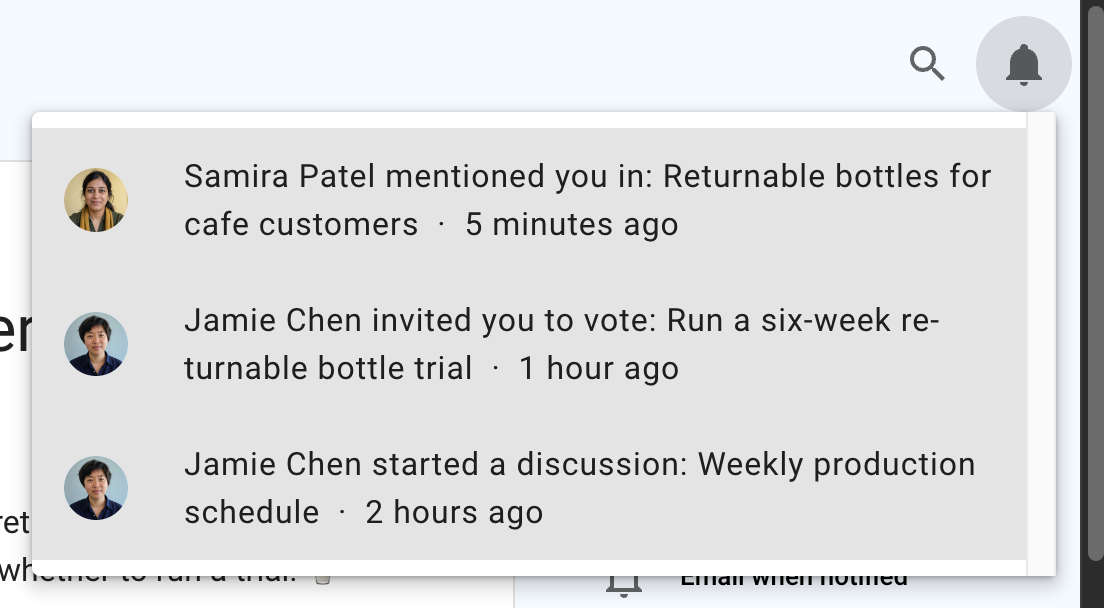
Select a notification to open the related discussion or poll.
Catch-up
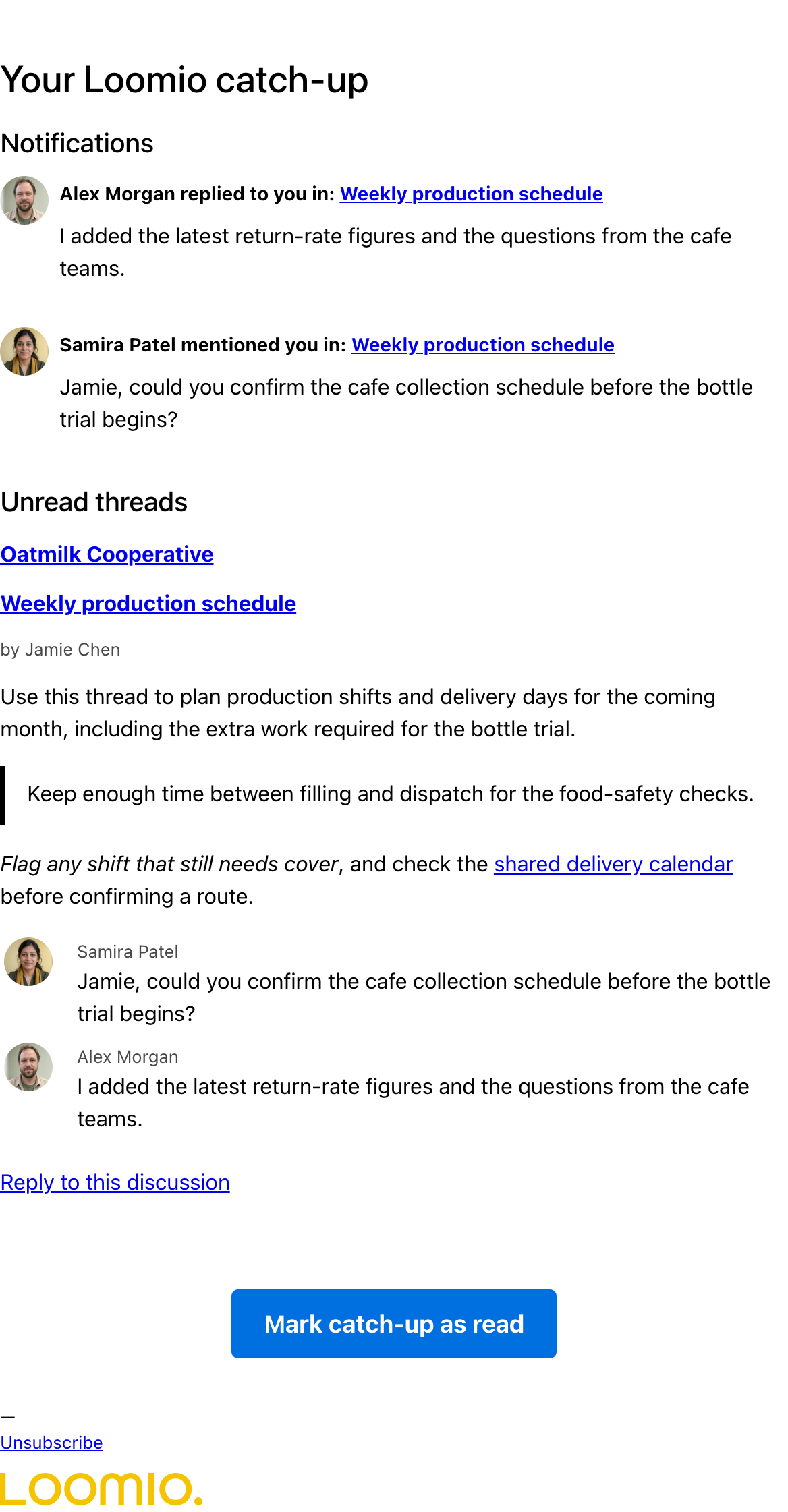
The catch-up provides a regular overview of activity without requiring you to follow each group throughout the day.
It shows your unseen notifications first, followed by unread discussions and standalone polls grouped by group. Notifications provide linked summaries of activity that needs your attention, while the unread section includes the discussion, poll, comment, vote, and edit details. Direct discussions and threads you have joined as a guest are included when they contain unread activity.
You can turn on Follow updates on an open Group that you have not joined. Unread discussions and polls from that Group are then included in your catch-up at your existing schedule. Reading the threads or marking the catch-up as read updates their read status in the same way as threads from Groups you belong to. Turn off Follow updates on the Group page to stop including them.
Loomio does not send a catch-up when there are no unseen notifications or unread threads from the relevant period.
Choose your catch-up schedule
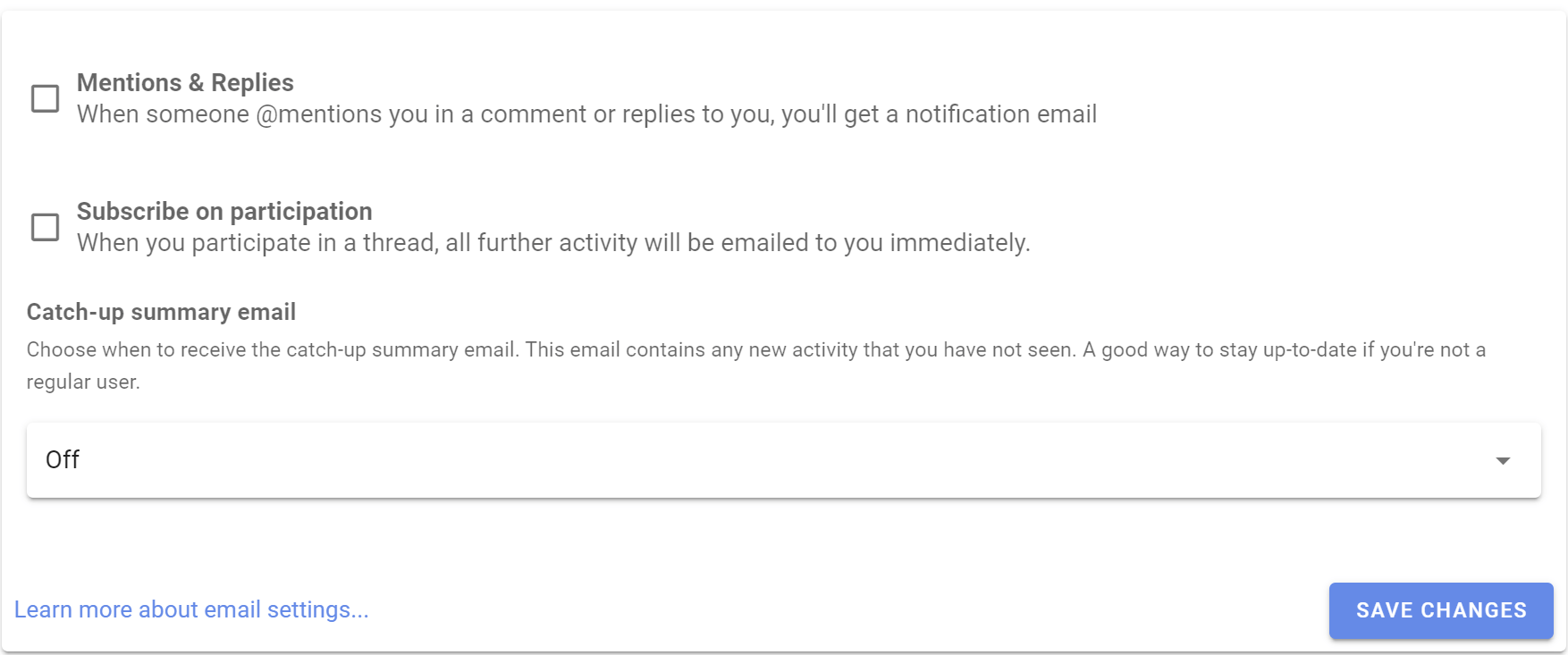
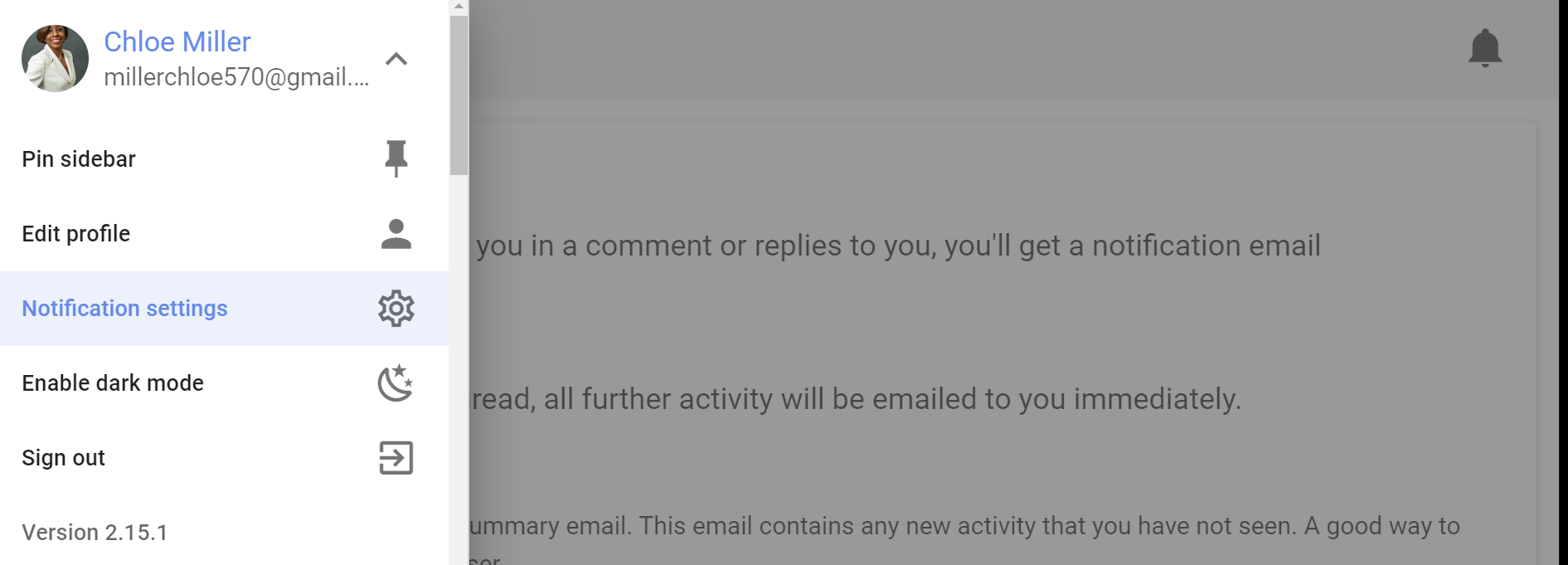
Open Notification settings from your user menu to choose how often you receive a catch-up.
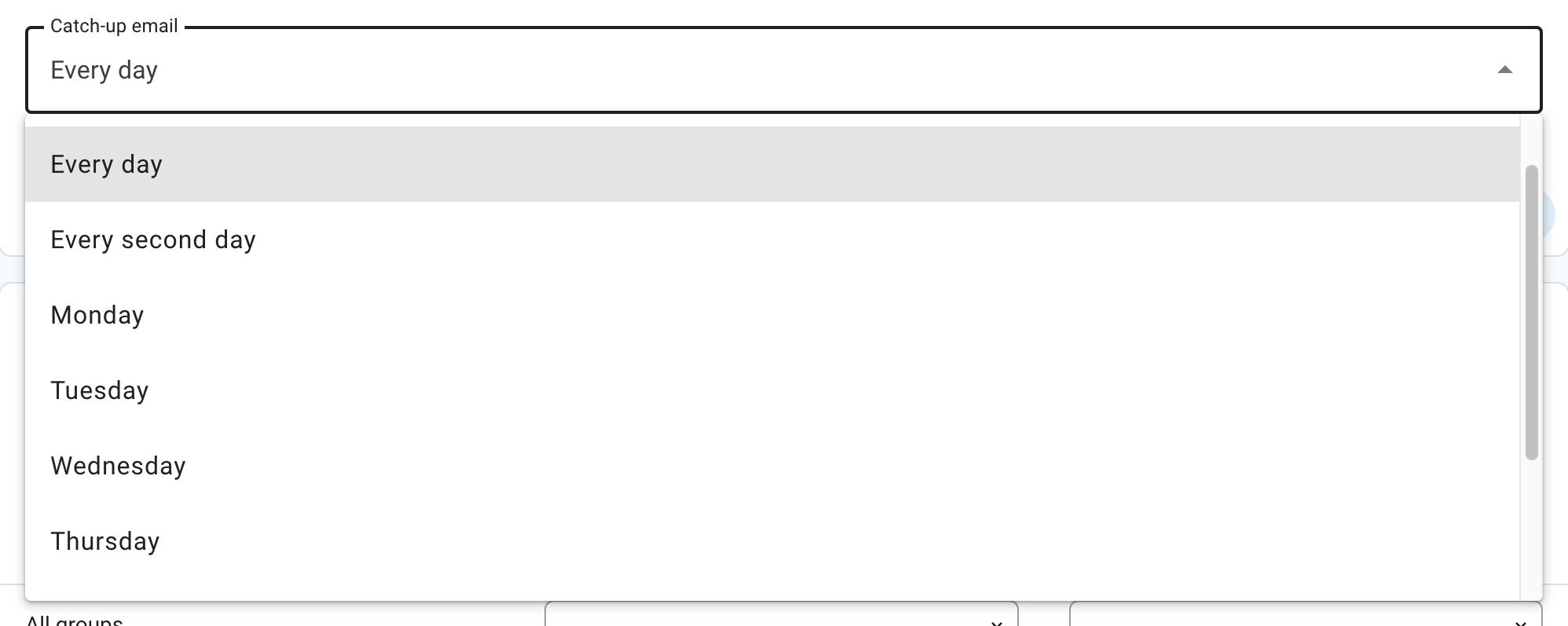
New accounts start with a daily catch-up. The available schedules are:
- Never to turn off the catch-up
- Every day for activity from approximately the previous 24 hours
- Every second day for activity from approximately the previous two days
- a weekday to receive a weekly catch-up on that day
The catch-up is sent in the morning according to the time zone in your Loomio profile.
Mark a catch-up as read
Select Mark catch-up as read to mark its notifications and topic activity as read in Loomio. Opening or previewing the catch-up does not mark anything as read.
A catch-up is not specific to one discussion, so do not reply to it. Open a discussion or poll from the catch-up before commenting or replying.
Group and thread notification settings
You can choose how closely to follow each group and thread. These settings belong to you; group administrators cannot change them.
Change your defaults for groups you join from Notification settings in your user menu. You can then override the default for a particular group or thread. A thread override changes only that thread and does not affect the rest of its group.
Group notification settings
To change the notification setting for a group:
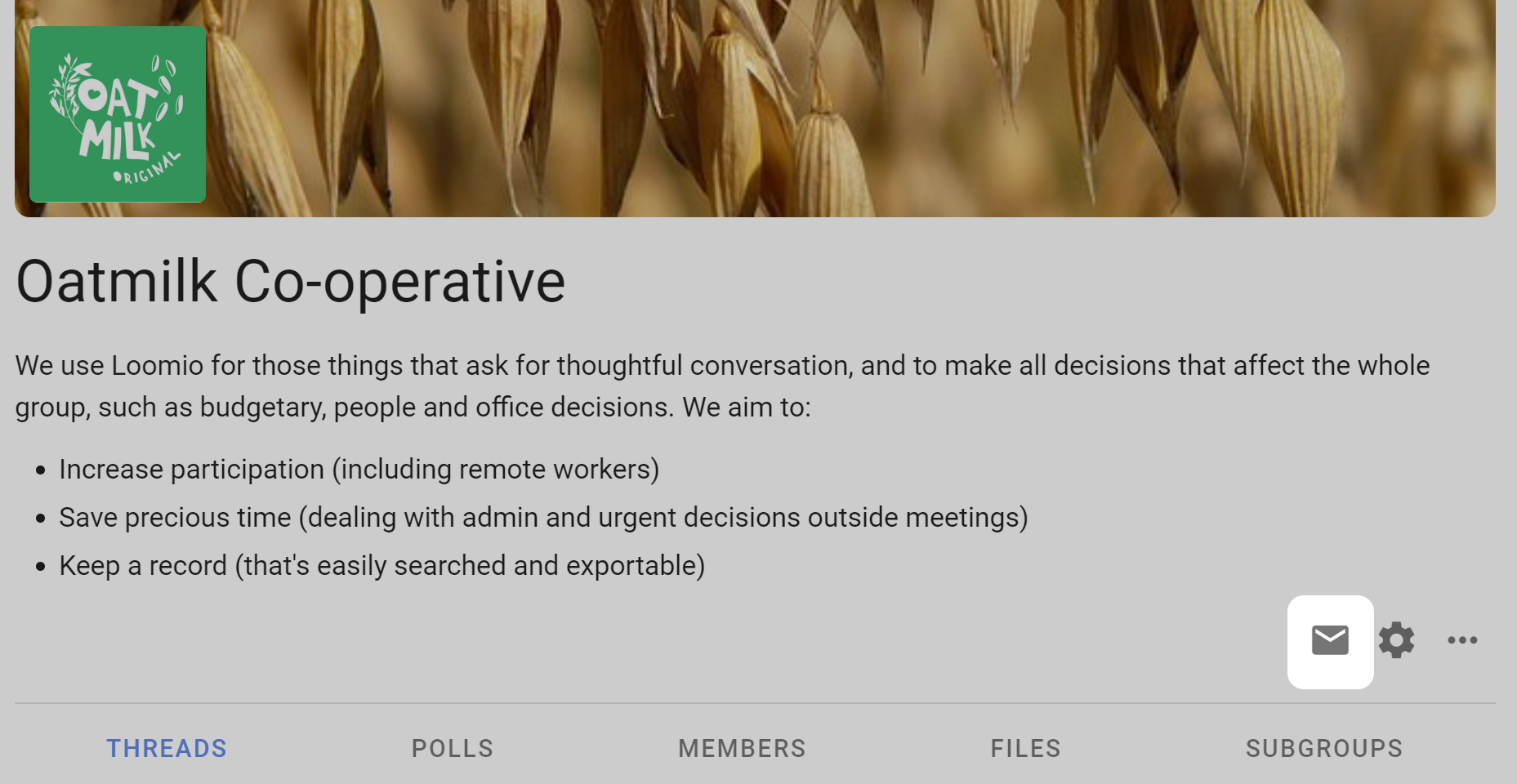
- Open the group page.
- Open the notification settings for the group.
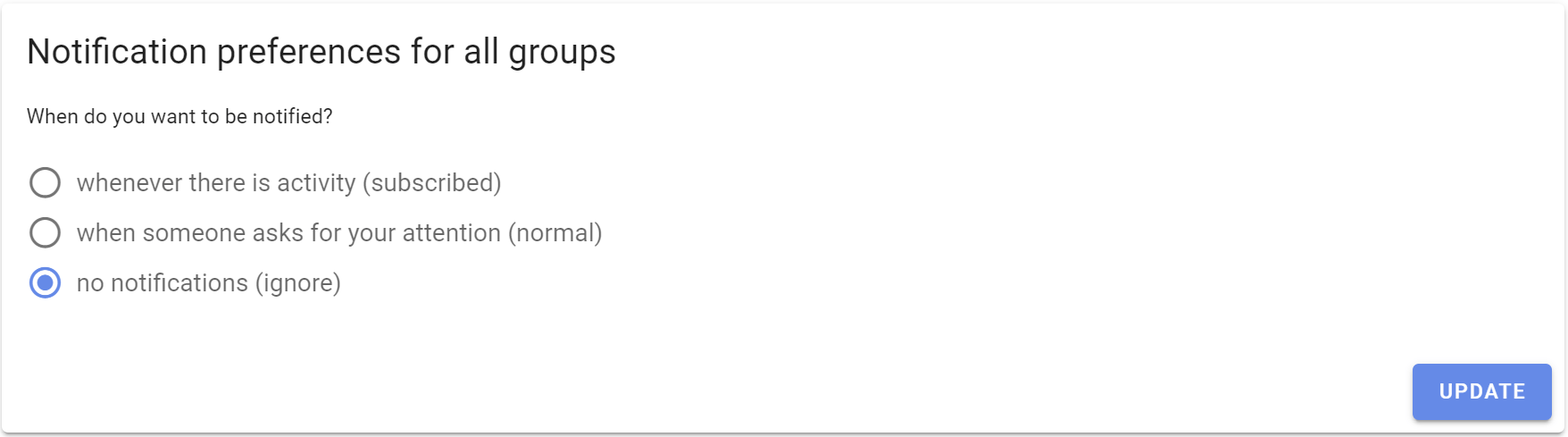
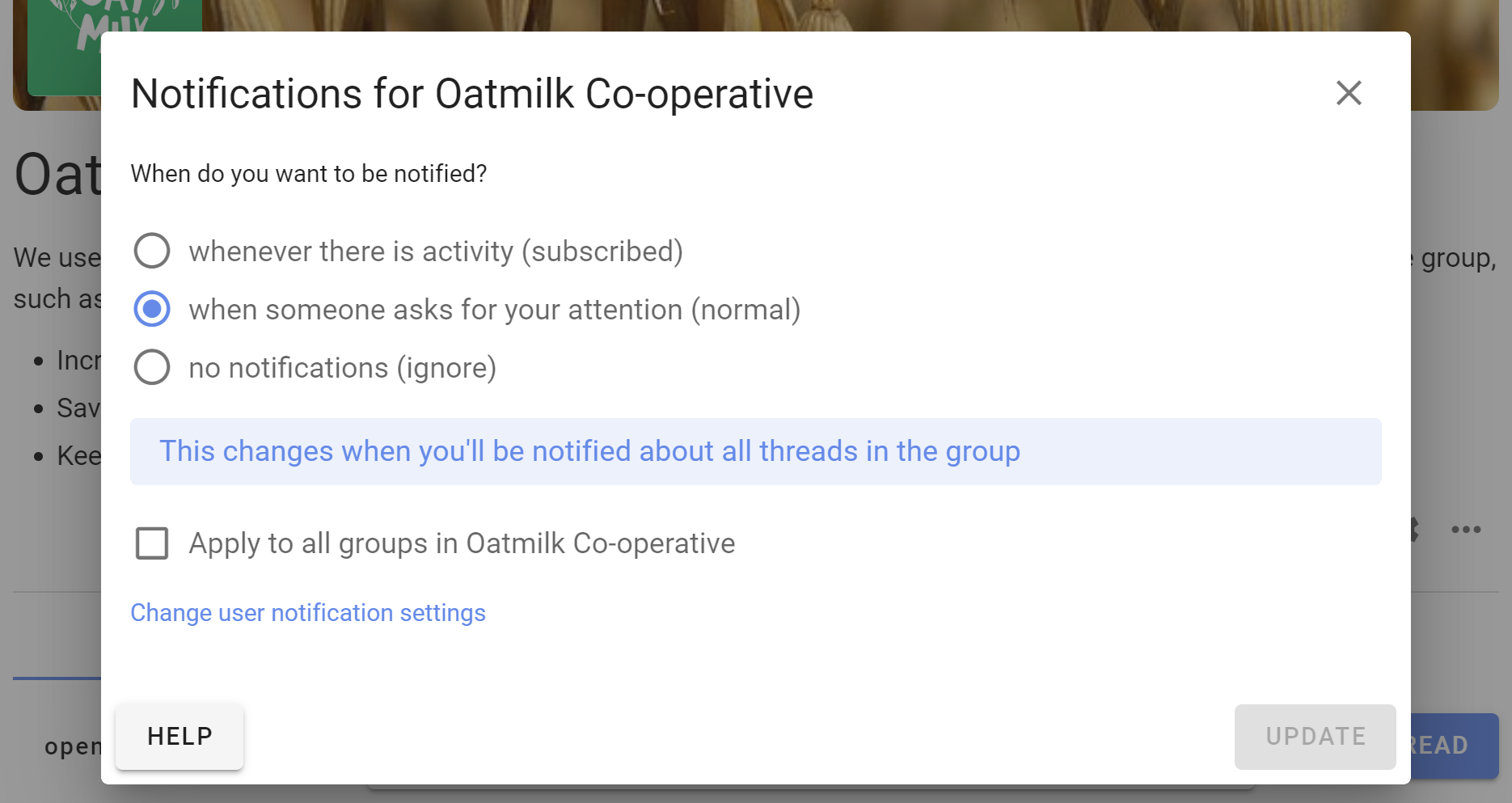
The form asks How do you want to stay updated? Choose Catch-up only, When notified, or All activity. If your catch-up is set to Never, Catch-up only is replaced by No email updates or No push updates.
Select Apply to all groups to use the same setting for all of your groups.
Thread notification settings
To change notification settings for an individual thread, open the notification control in the thread sidebar.
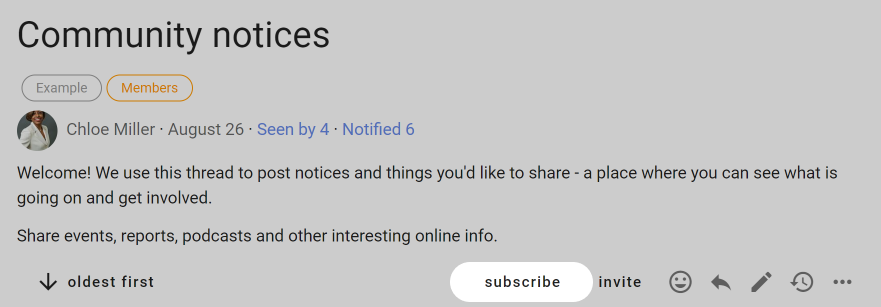
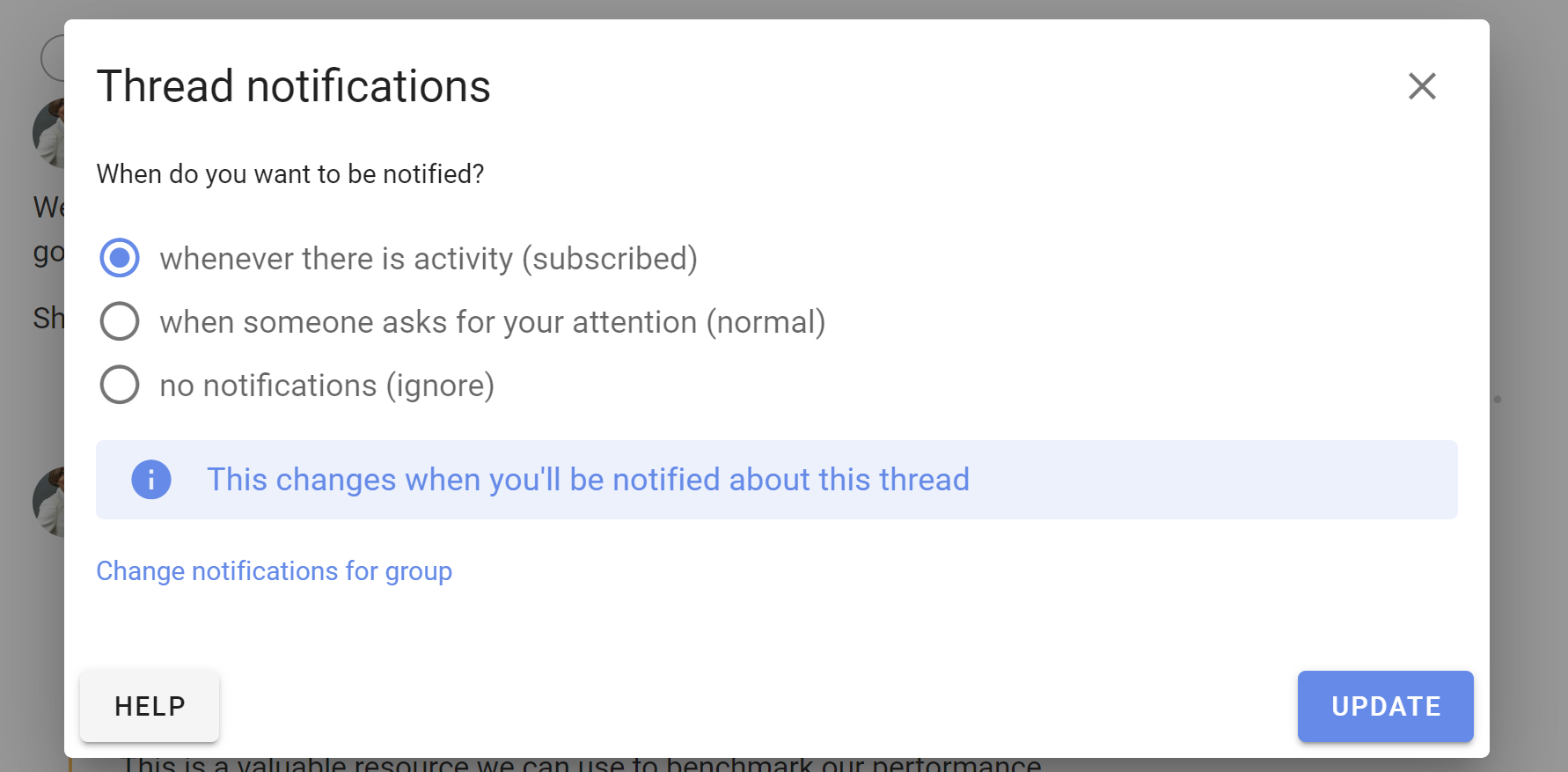
Thread notification settings use the same Catch-up only, When notified, and All activity choices. A thread setting overrides the group setting for that thread.
Note
The changes in Thread notification settings apply only to the thread you have open. Select Change notifications for group to change the setting inherited by the group's other threads.
Email delivery
By default, Loomio sends an email when you are notified. Depending on your group and thread notification settings, this can include mentions, replies, discussions shared with you, invitations and reminders to vote, outcomes, and polls closing soon. Choose All activity to also receive emails about every new comment, vote, thread, poll, and outcome.
When a discussion email says that replies are accepted, you can reply directly from your email and your message will be posted into the Loomio discussion.
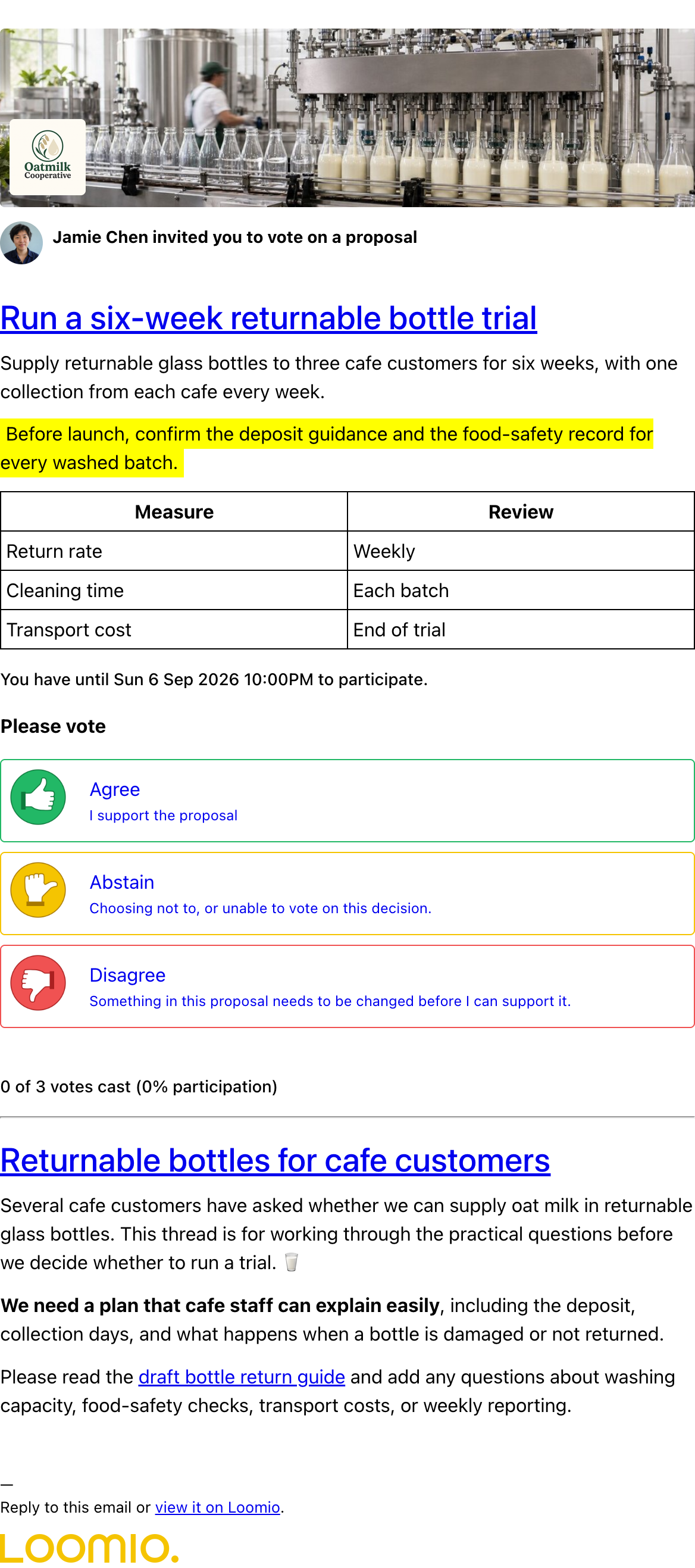
Poll invitation emails show the poll and its response options, but selecting an option opens Loomio in your browser to complete the vote. You may need to sign in or confirm your account. The catch-up cannot accept replies; open the linked discussion or poll first.
Enable mobile notifications with web push
Web push is how Loomio delivers mobile notifications today. It can notify you about Loomio activity on your phone when Loomio is not open.
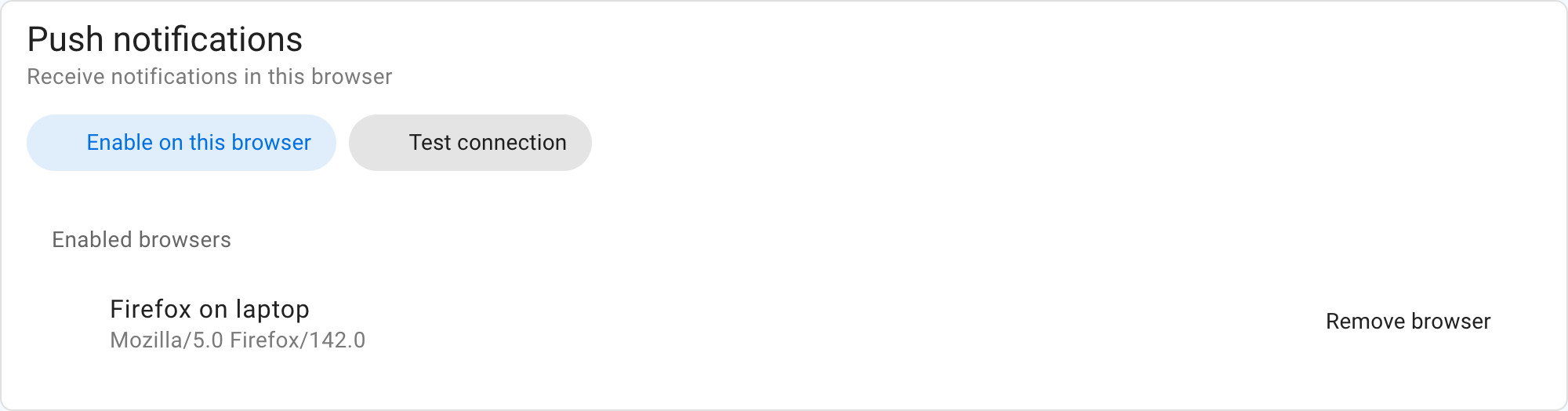
On Android, open Notification settings in a supported browser and enable push. On an iPhone or iPad, first open Loomio in Safari, use Share then Add to Home Screen, open Loomio from the new Home Screen icon, and enable push from there. Select Test connection to verify delivery to every browser listed under Enabled browsers.
Web push also works in supported desktop browsers. Enable it there if you want Loomio notifications on your computer.
Once push is enabled in at least one browser, group and thread notification forms let you choose Email, Push, or Email and push. Email and push can use different notification settings. Push delivery can be delayed by the browser, operating system, or network connection.
Turn off external notifications
To stop email and push messages for group and thread activity, open Notification settings from your user menu, set the catch-up to Never, and choose No email updates and No push updates. Notifications and activity remain available when you open Loomio.