Quick tour
This page introduces the main parts of the Loomio interface and where to find the work that involves you.
Group page
Your group home page introduces the group and provides access to its work.
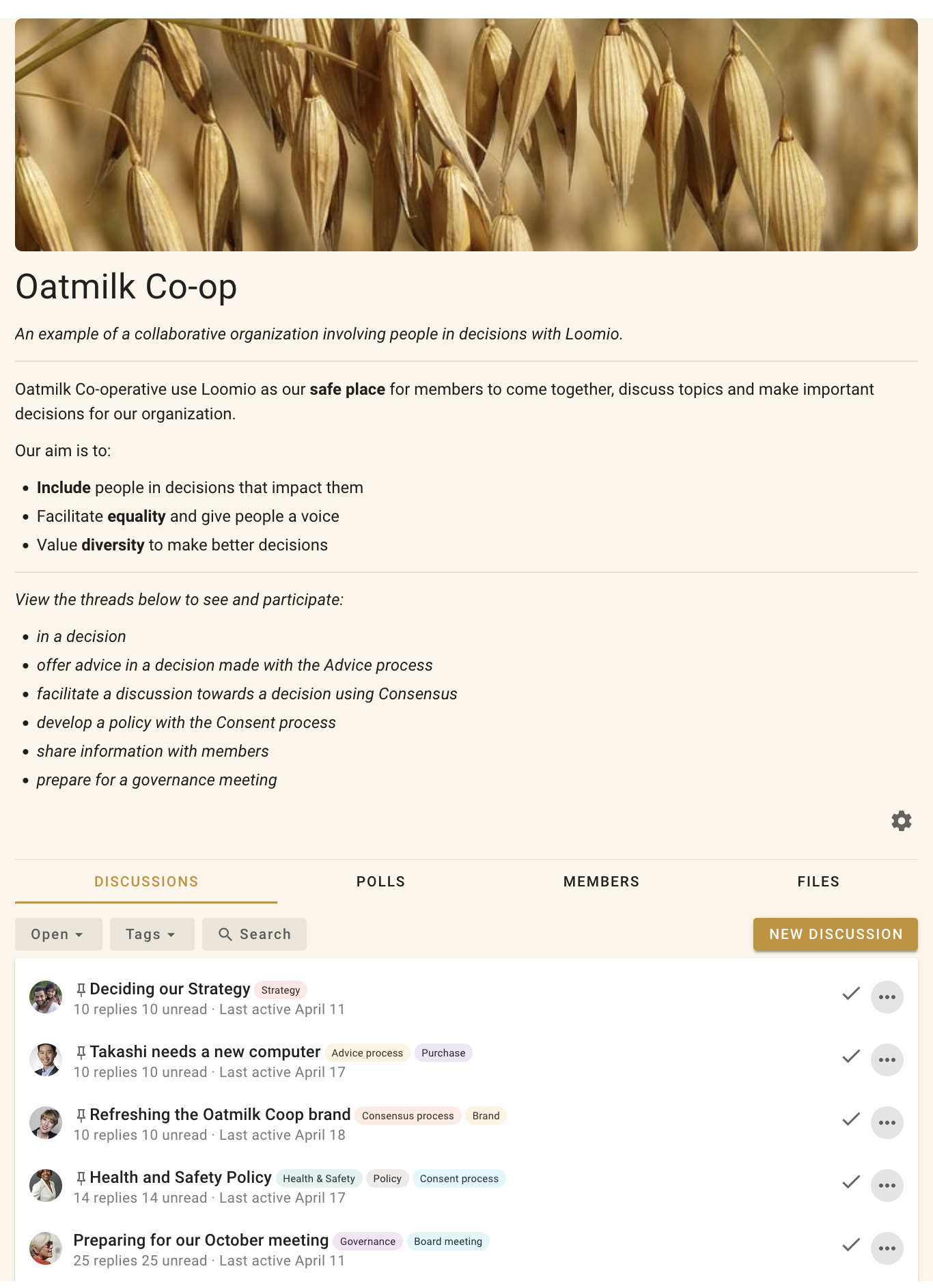
Tabs
The tabs under the group description provide access to:
Discussions - The group's discussion threads and recent activity.
Polls - A list of polls active in your group.
Members - The people who belong to the group.
Files - Documents and other files attached throughout the group. The tab collects files from discussion contexts, comments, proposals, and polls, so you can find a document without remembering where it was attached.
See Finding content for help with search, filters, tags, bookmarks, and unread discussions.
Sidebar
Open the sidebar with the menu button (☰) at the top left.
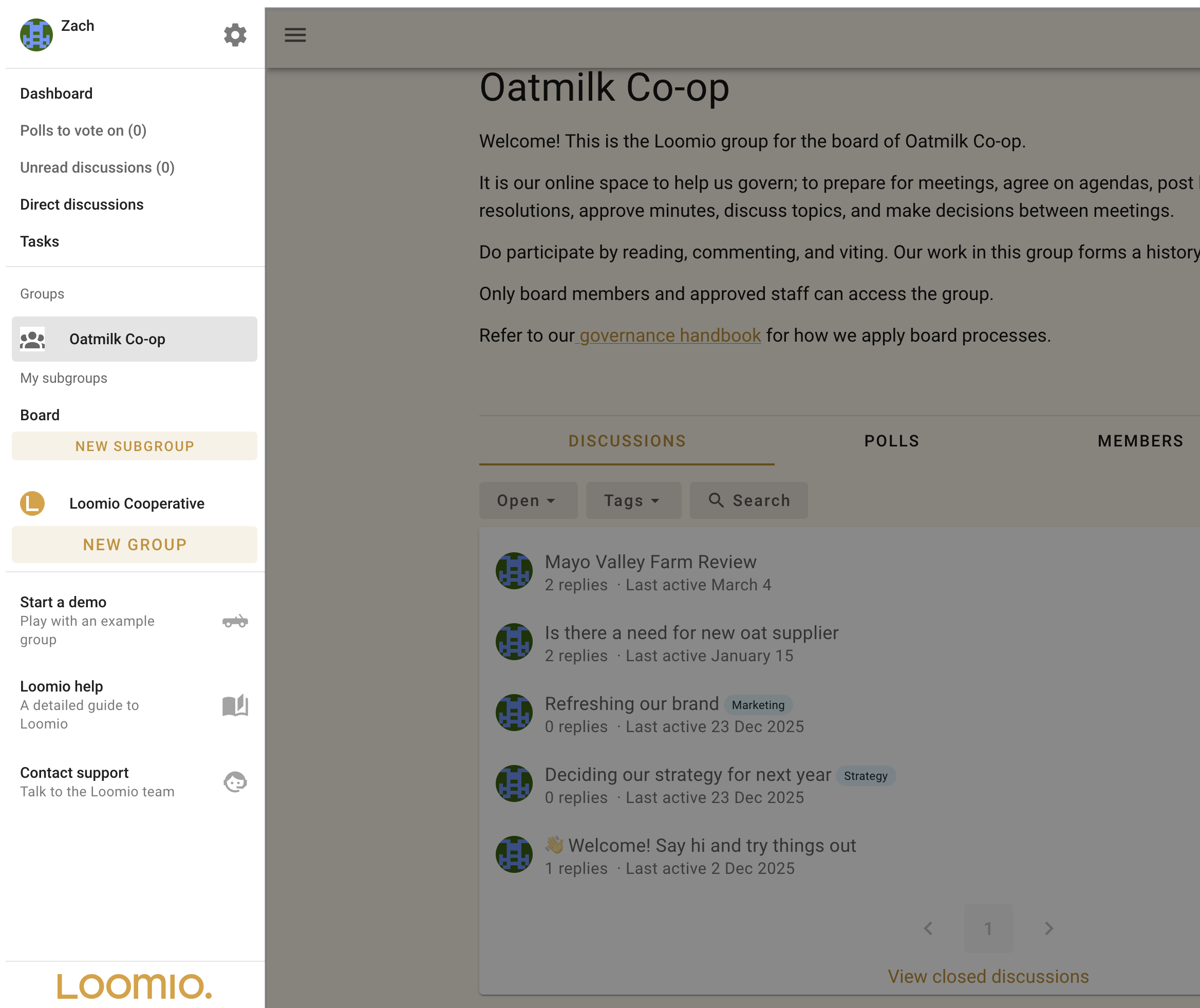
Use the sidebar to open your dashboard, polls awaiting your vote, unread and direct discussions, tasks, and groups. It also links to the user manual and support.
User settings
Select your name in the sidebar to open your user menu.
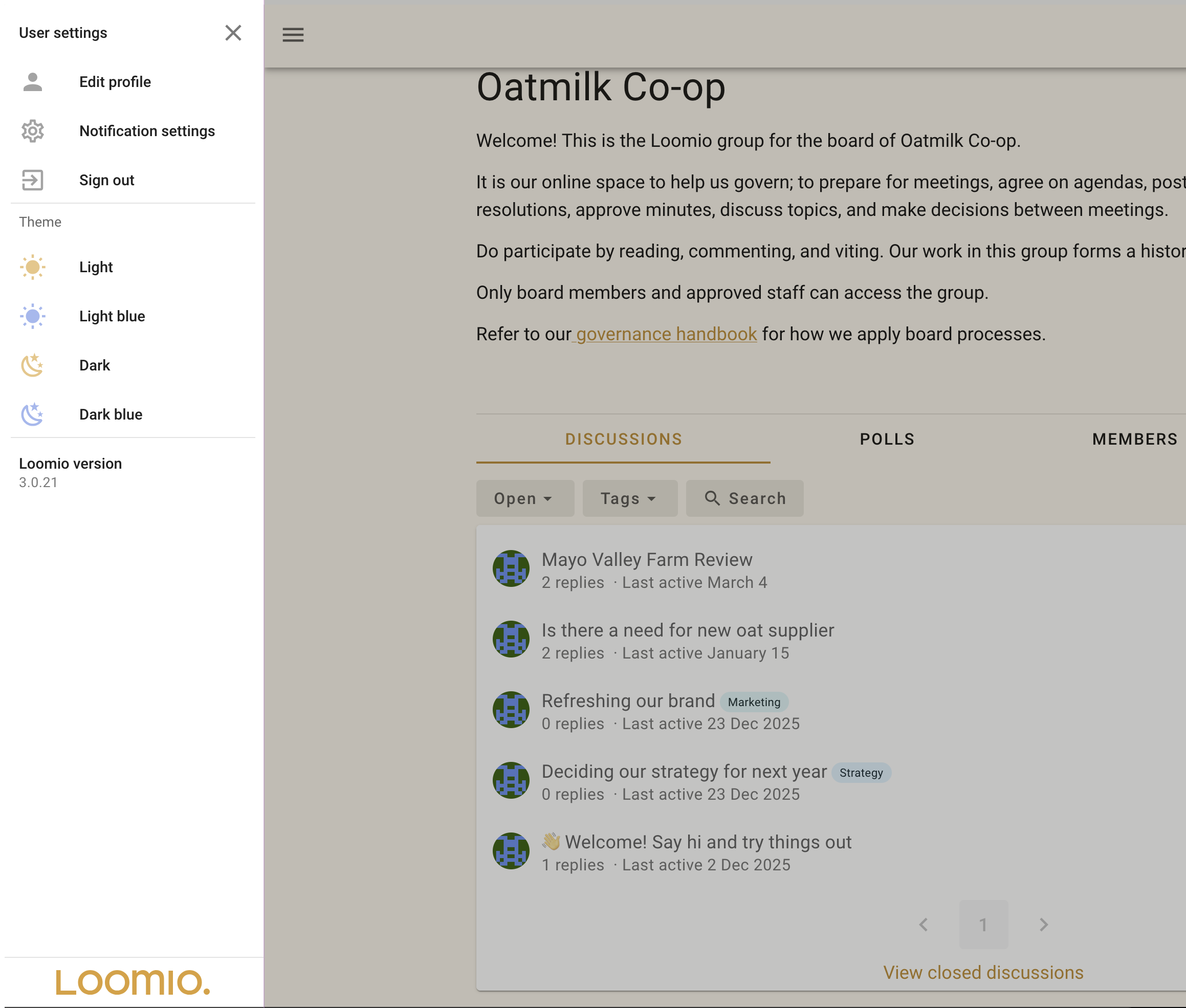
Use this menu to edit your profile, change notification settings, choose a theme, manage account settings, and sign out.
Notifications
The bell button at the top right opens your in-app notifications. A badge appears when you have notifications you have not viewed.
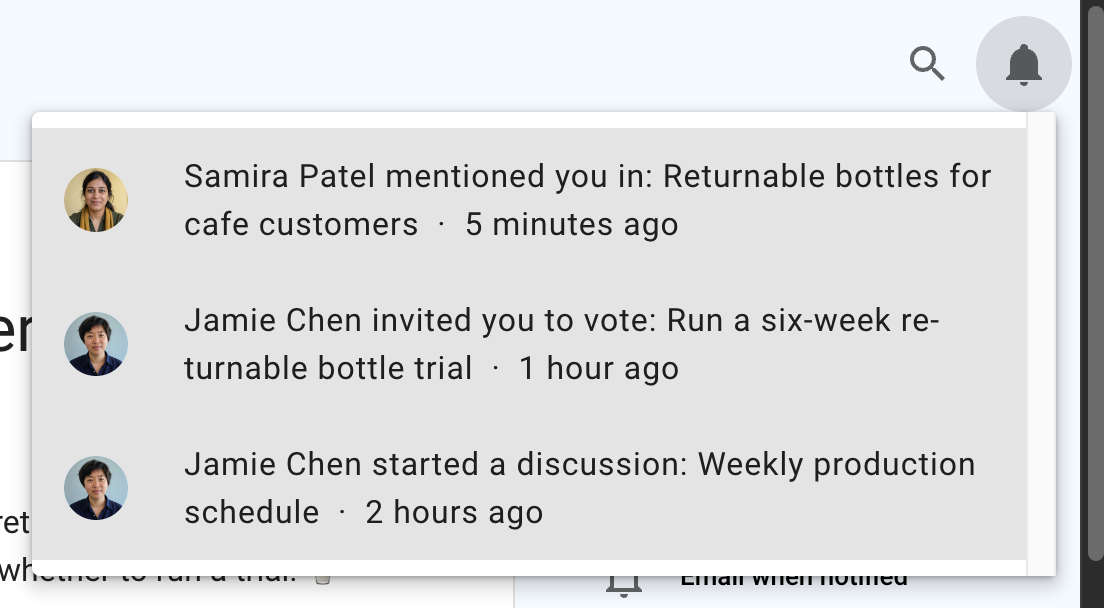
See Notifications to learn about in-app notifications, email preferences, and notification settings for groups and discussions.
What to do next
- Read How to participate to learn how to comment, reply, react, and vote.
- Read Finding content to learn how to locate discussions and decisions.
- Visit Discussions or Proposals and polls for detailed guidance.