Subgroups
Subgroups help you organize your communications and members so that the right people are engaged in their work together.
For example, an organization may have the following subgroups: - governance board - working team or a project working group - a topic (such as 'strategy' or 'learning')
Subgroups work just like groups do, but are located within your "parent" group. Most of the features and settings available are the same as in the parent group. This also means that someone can be a member of your subgroup, such as your board, but not of your parent group.
Add a subgroup
Note
The ability to add new subgroups is part of the group's permission settings. By default, only admins can start new subgroups.
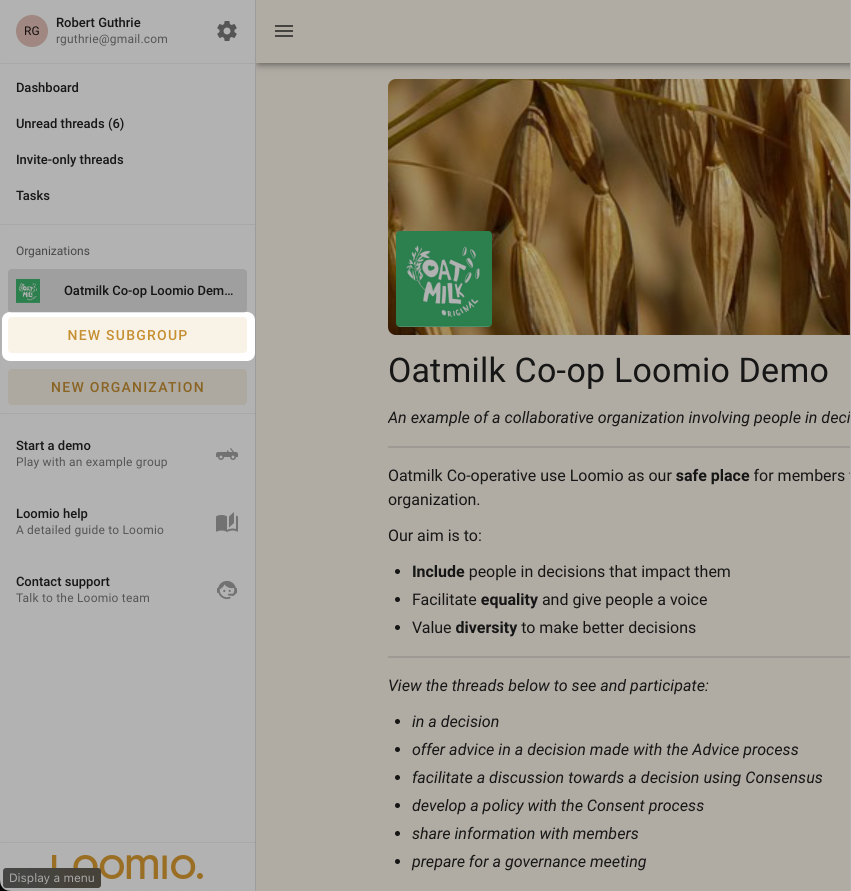
To add a subgroup, visit your main group page, then click New Subgroup from the sidebar.
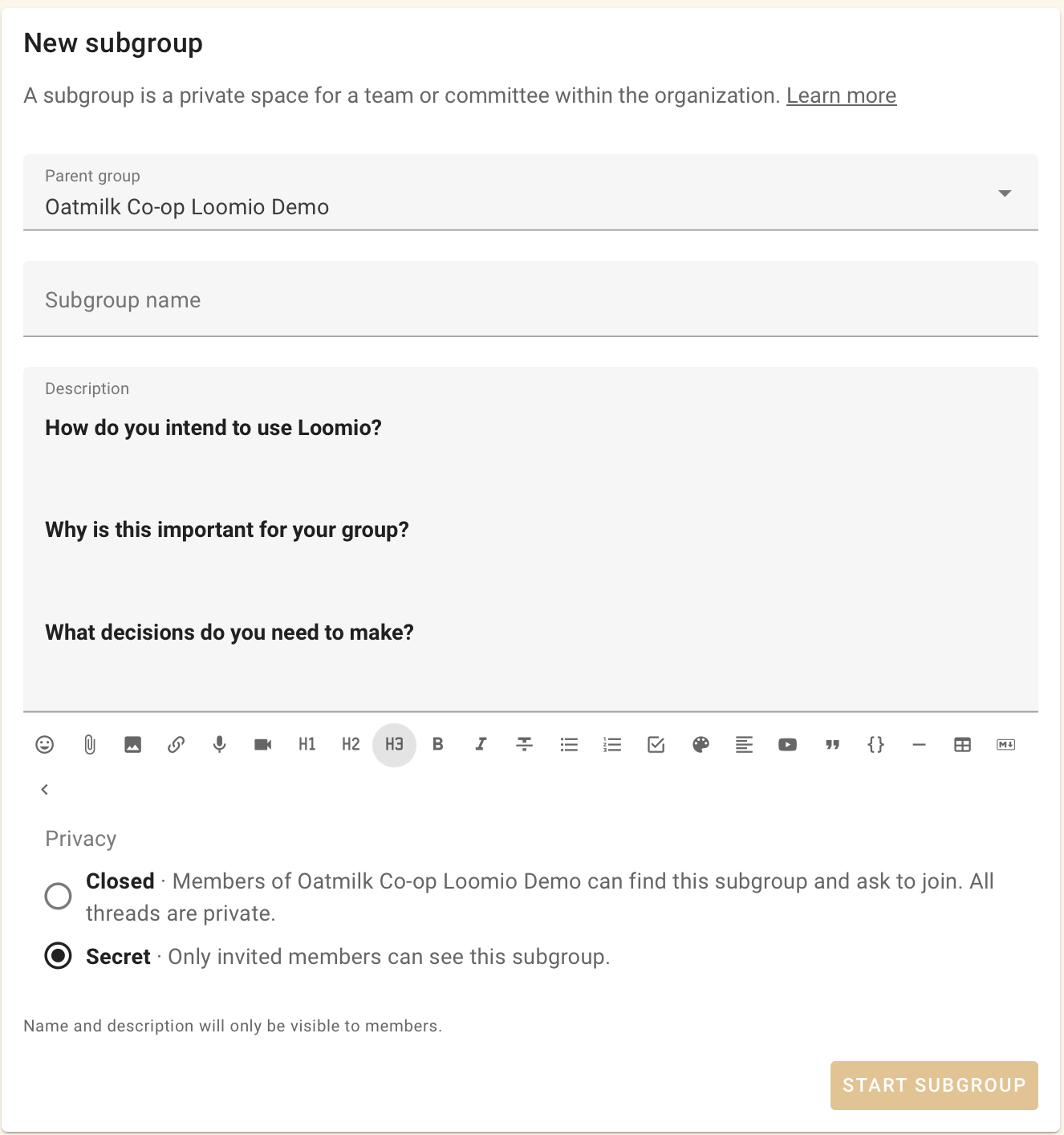
Click the New subgroup button, give it a name and select the privacy setting, then click Start subgroup.
When you are ready, invite people to the subgroup.
You can edit the subgroups group settings by clicking the cog icon on the subgroup page.
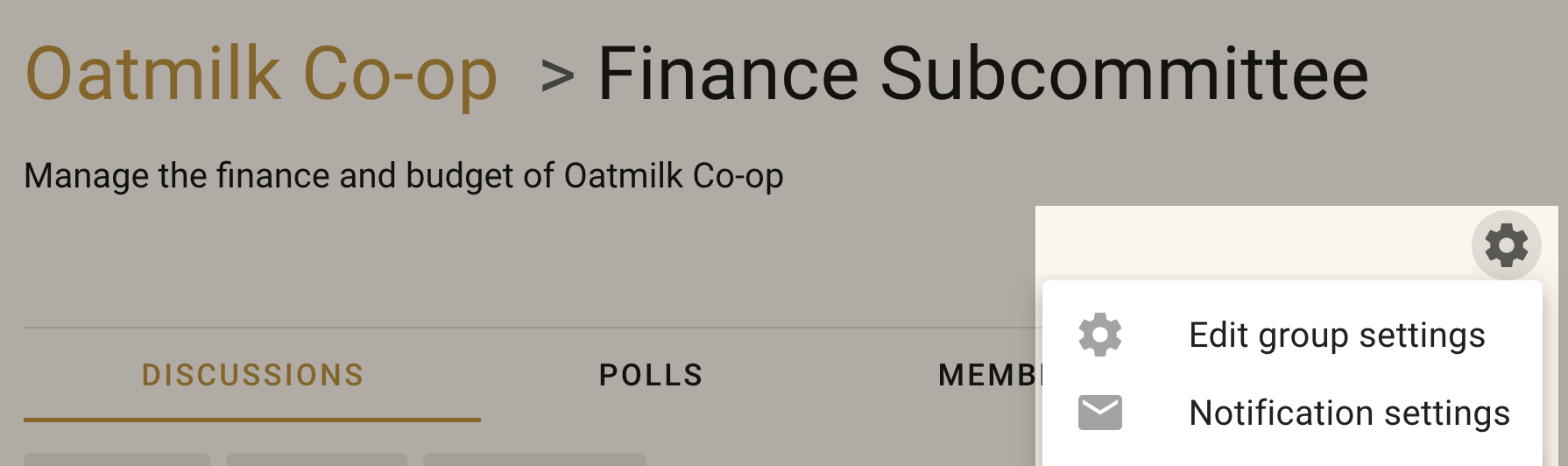
Subgroup settings
Privacy
The privacy settings for subgroups are similar to the parent group.
Secret subgroups are not visible to people not invited to the subgroup.
Closed subgroups are listed in the Subgroups tab of the parent group and user's sidebar menu. Members of the parent group can request to join the subgroup. Membership is approved by a subgroup admin.
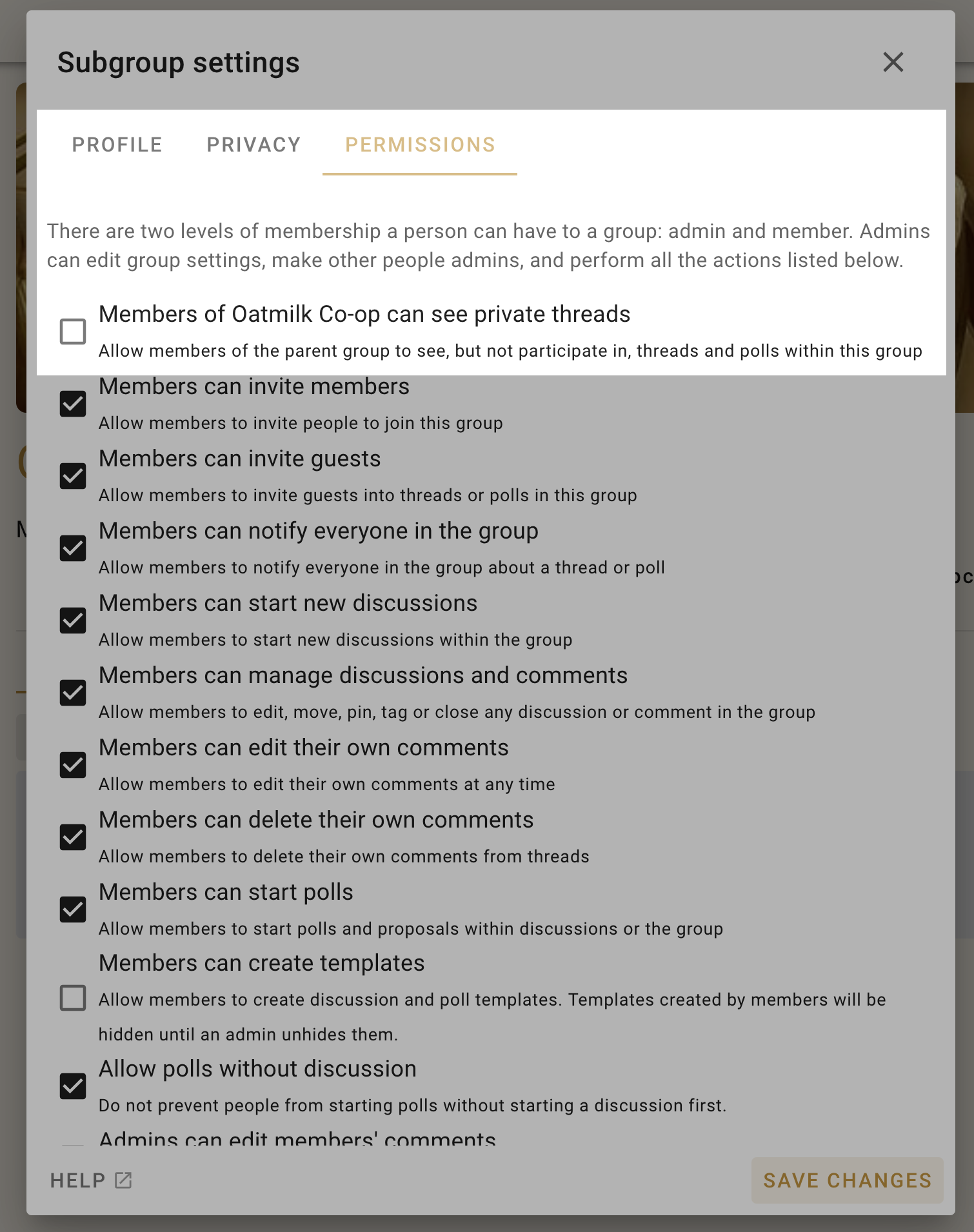
Closed subgroups have an additional setting that allow members of its parent group to see private threads.
Read about group privacy here.
Permissions
Subgroups operate independently of the main group. For example, if the subgroup privacy setting is set to Secret, then only invited members can find this subgroup, see who is in it, and see threads.
Closed subgroups have an additional setting that allow members of its parent group to see private threads, enabling the subgroup to be transparent to members of the parent group.
Find subgroups
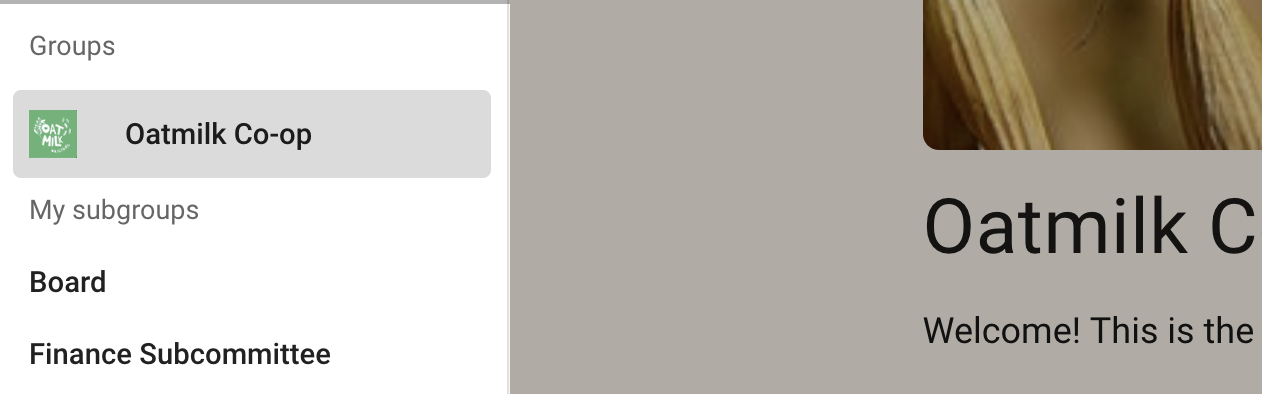
Open the sidebar menu, and click your group name to see it's subgroups.
Invite to a subgroup
Invite people to a subgroup as you invite them into a group. If they already belong to a parent group or another subgroup in the same organization that you also belong to, you can type their name or select that group as an audience. Select the audience chip to expand it into individual people, then remove anyone you do not want to invite.
Simultaneously invite people to subgroups and parent group
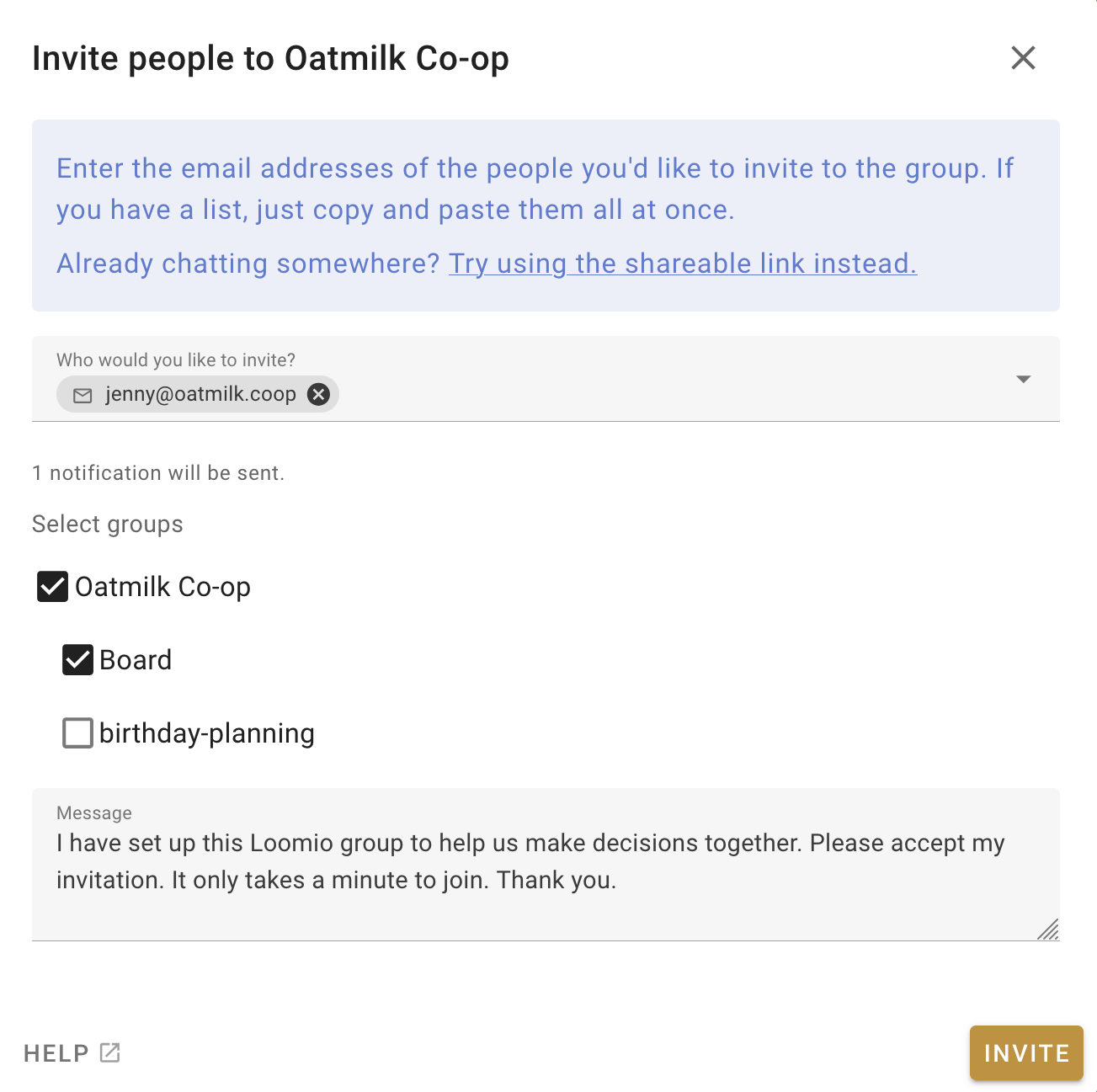
If you use the Invite people button from your parent group's Members tab, you can invite people to multiple subgroups at the same time by ticking the boxes of those you would like them to join immediately.
Administer a subgroup
Subgroups can have their own admins, and admins of a subgroup may not be the same as the admins of the parent group.
However an admin of the 'parent' group can make themselves admin of any subgroup. This helps administrators of the parent group to administer subgroups as necessary.
Go to the Subgroup tab, find the subgroup and click Join group.
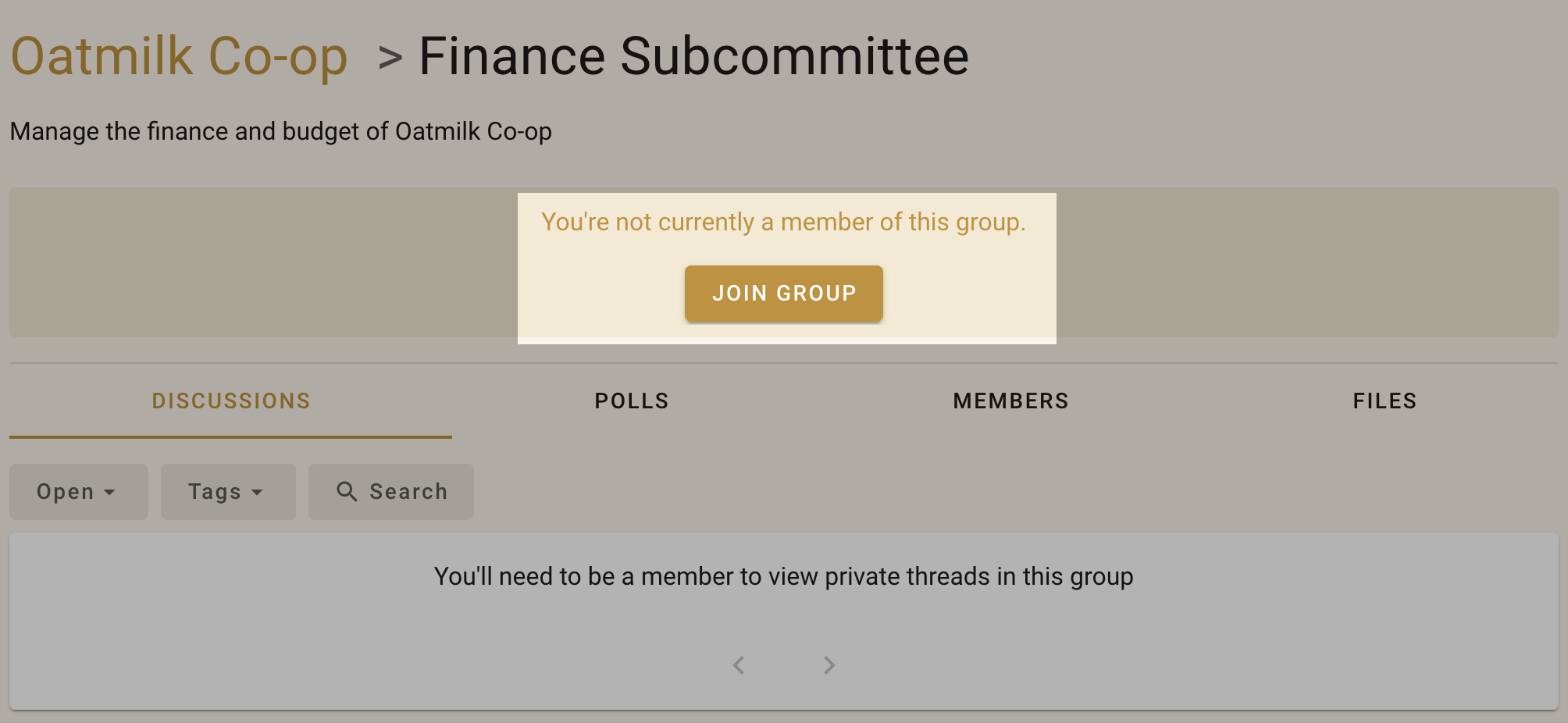
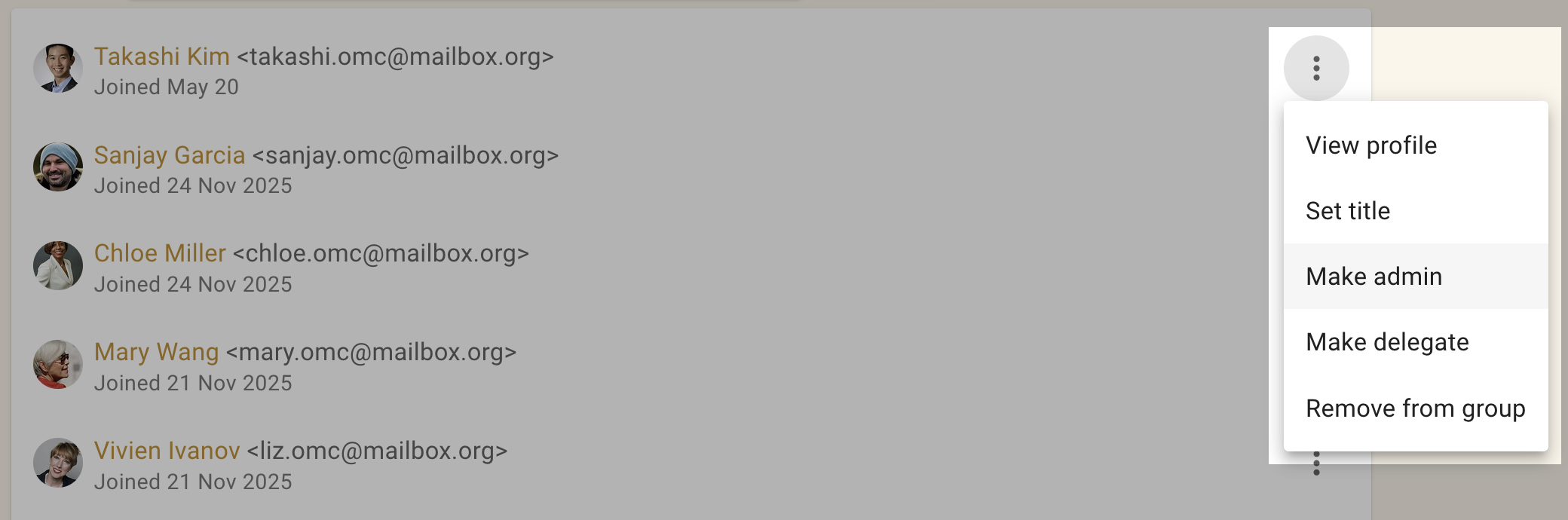
Now a member of the subgroup, an admin of the parent group can make themselves an admin of the subgroup.
Delete a subgroup
Admins can delete a subgroup in the same way you delete a group. When deleting a subgroup, be careful to not delete the 'parent' group.
Learn how to delete groups.