Manage voters
Use Manage voters to give people a vote and invite them to take part in a proposal or poll.
Invite people to vote
After you start a poll with Selected people only, the Manage voters window opens. You can also open it by selecting Manage voters on the poll.
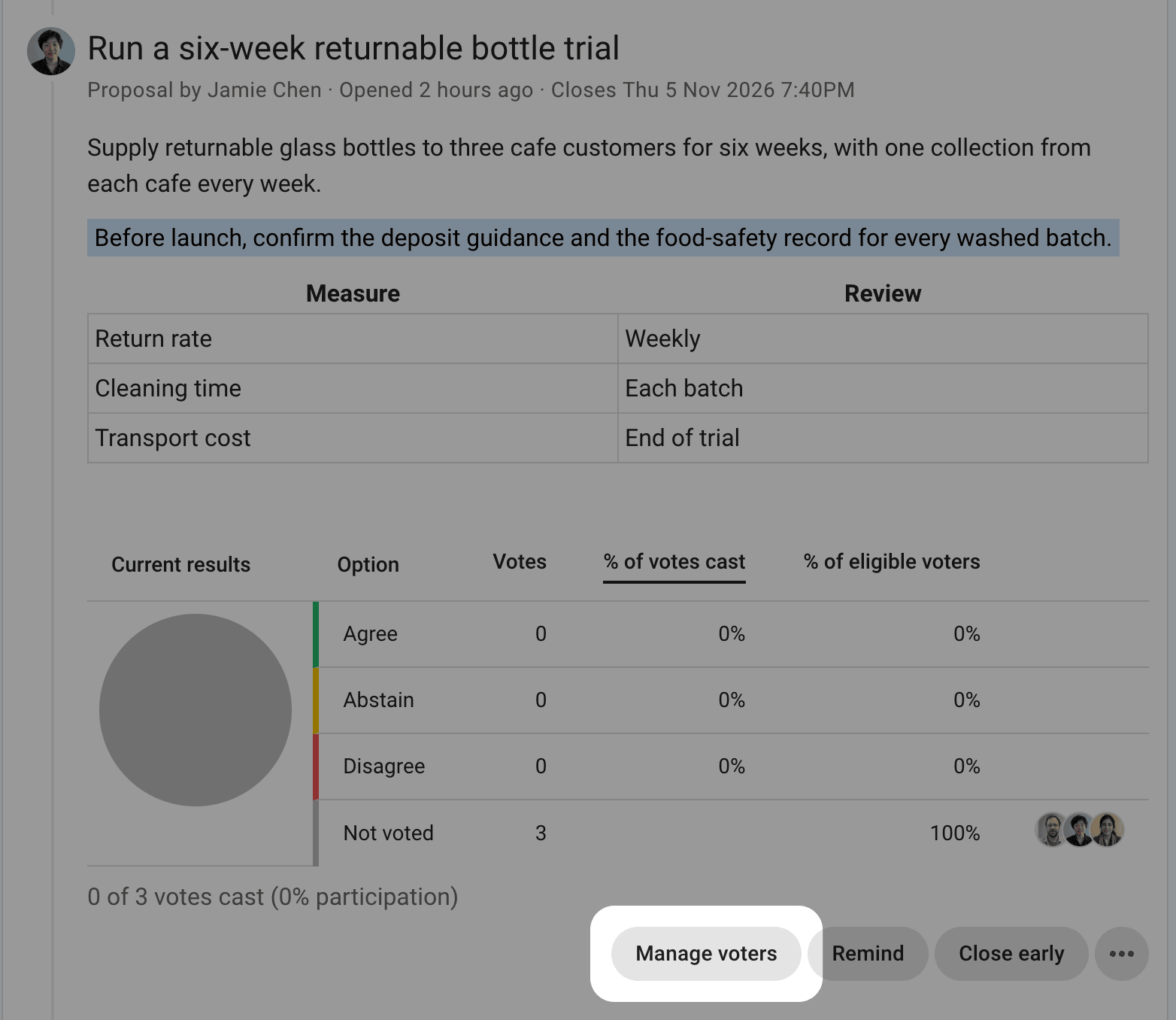
Choose an audience
Click the empty Find or invite voters field to see suggestions. They appear in this order:
- your group
- Delegates of your group, if your group has delegated voters
- connected chat rooms, such as Slack or Microsoft Teams
- subgroups and the parent group
- individual members
In a direct thread, the list offers Everyone in the thread instead of a group.
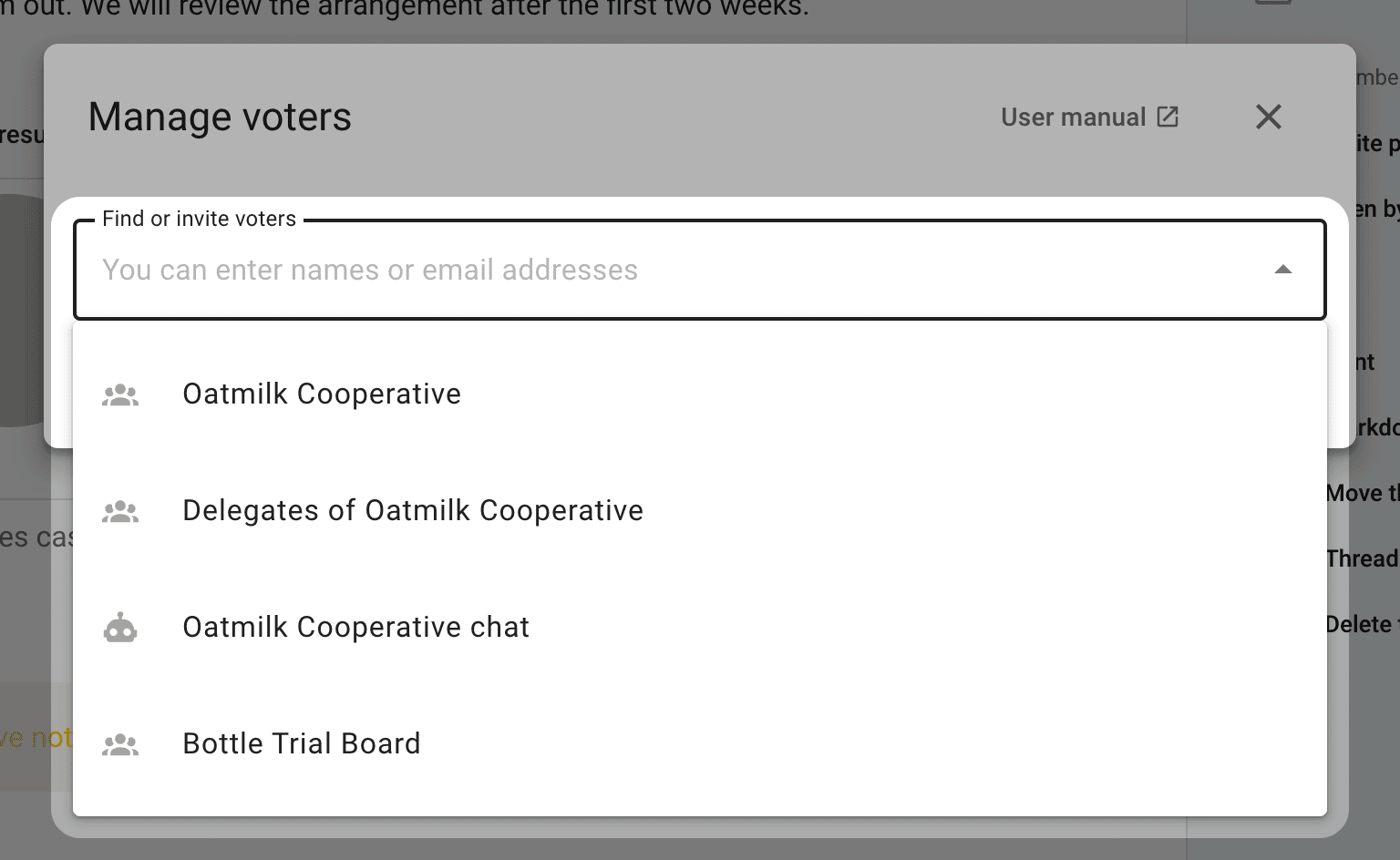
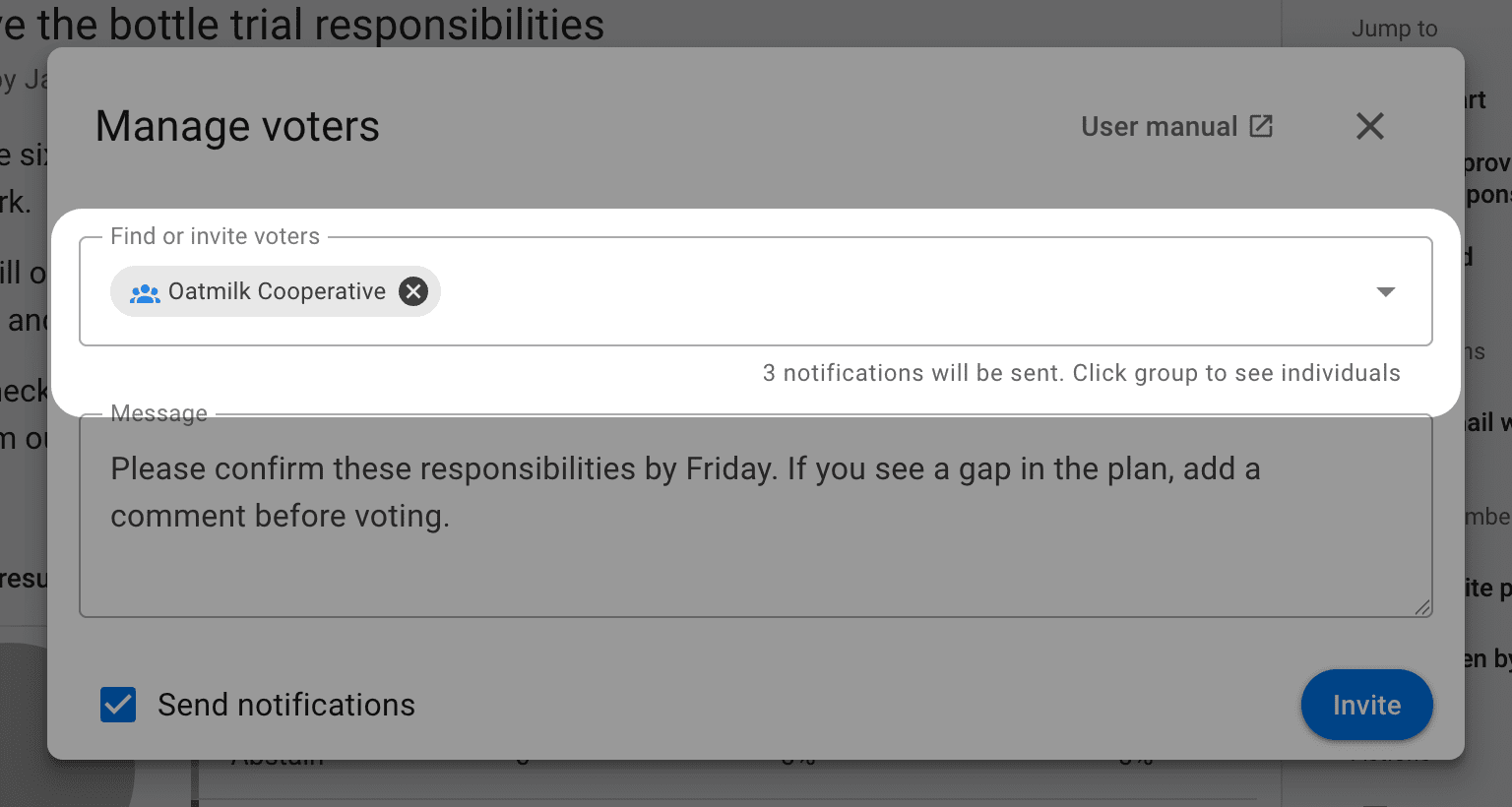
Select an audience to invite those people together. For example, selecting Oatmilk Cooperative includes the people in that group. You can also select a connected chat room to post the invitation there. Posting to a chat room does not add its members as voters.
Check who is included
After you select an audience, the field shows its name and how many people are included. Check this count before sending the invitation.
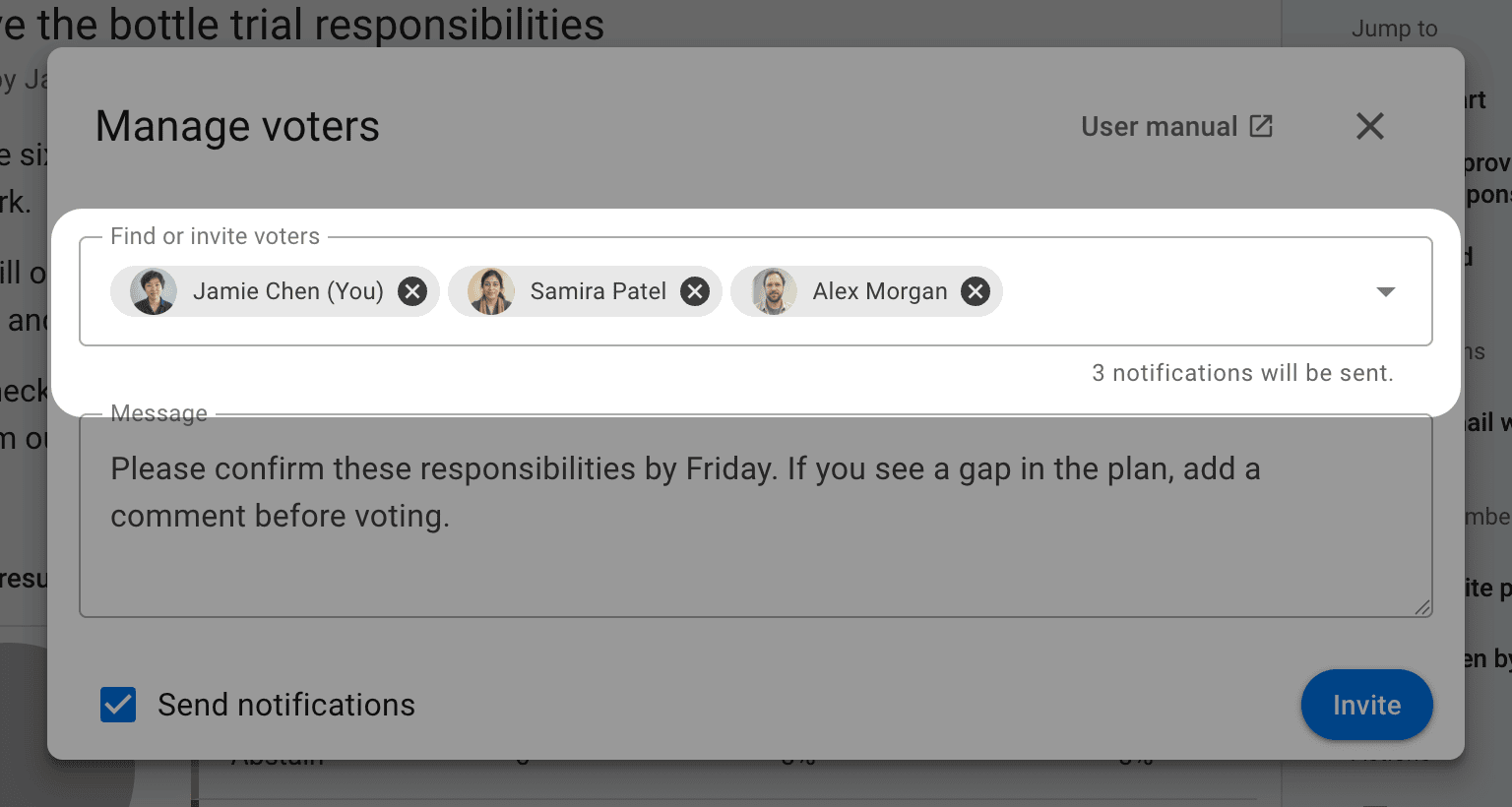
Click the audience name to expand it into individual people. You can then select the × beside a person to leave them out of this invitation. This does not remove them from the group.
Add people by name or email
You can also type a person's name and select them from the suggestions, or enter an email address to invite someone new. You can add several people to the same invitation.
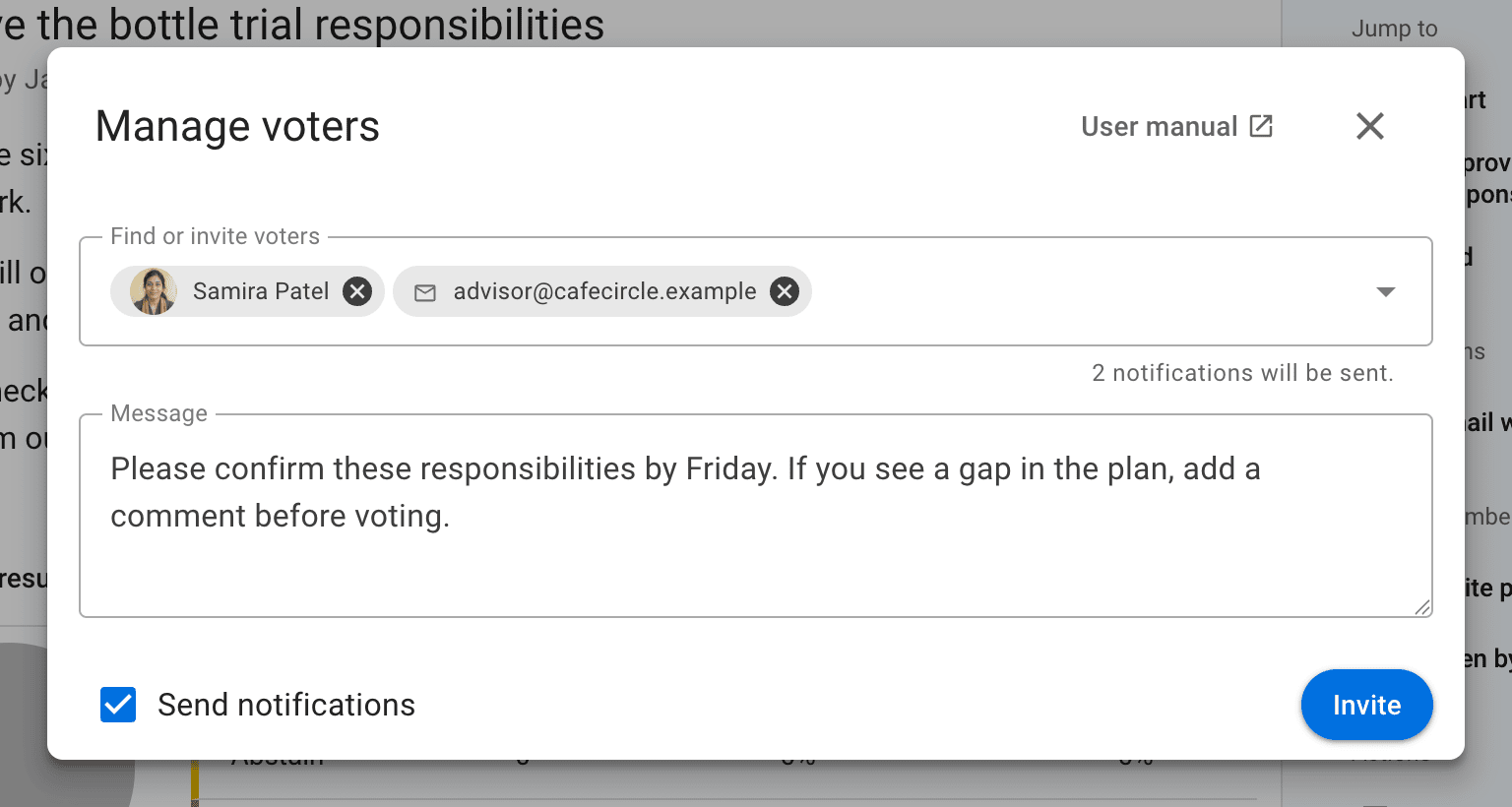
Guests receive access to this poll. If the poll is within a thread, they can also read that thread and its comments. The invitation does not give them permission to comment in the thread, vote in its other polls, or see other group threads.
Send the invitations
Add a message explaining what you are asking people to decide, then select Invite. Leave Send notifications checked to notify the people you are inviting. Uncheck it to add voters without sending a notification.
For a scheduled poll, select Add voters. People receive their invitation when voting opens.
After inviting people
Add more voters
You can reopen Manage voters to add people at any time, including before a scheduled poll opens. The window also lists existing voters, with the most recently added people first. Type a name to find someone, or use the page controls to browse a longer list.
Remove people from the poll
Select the trash button beside a person and confirm Remove voter to take away their vote in this poll. For example, someone setting up a board vote can remove themself if they are not entitled to vote.
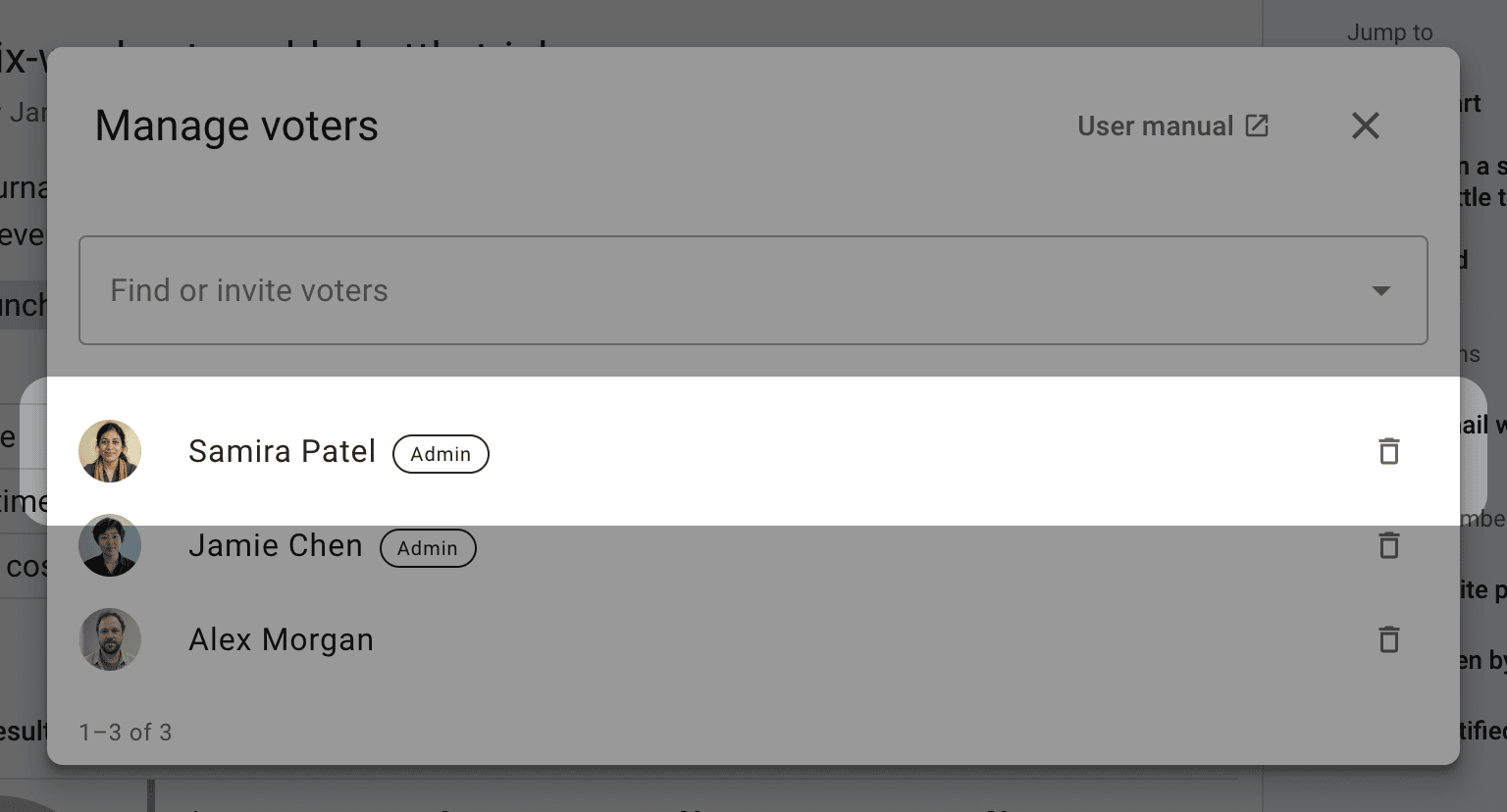
People cannot be removed from an anonymous poll. In polls with vote weights, thread admins can also review and edit weights here.
Remind people to vote
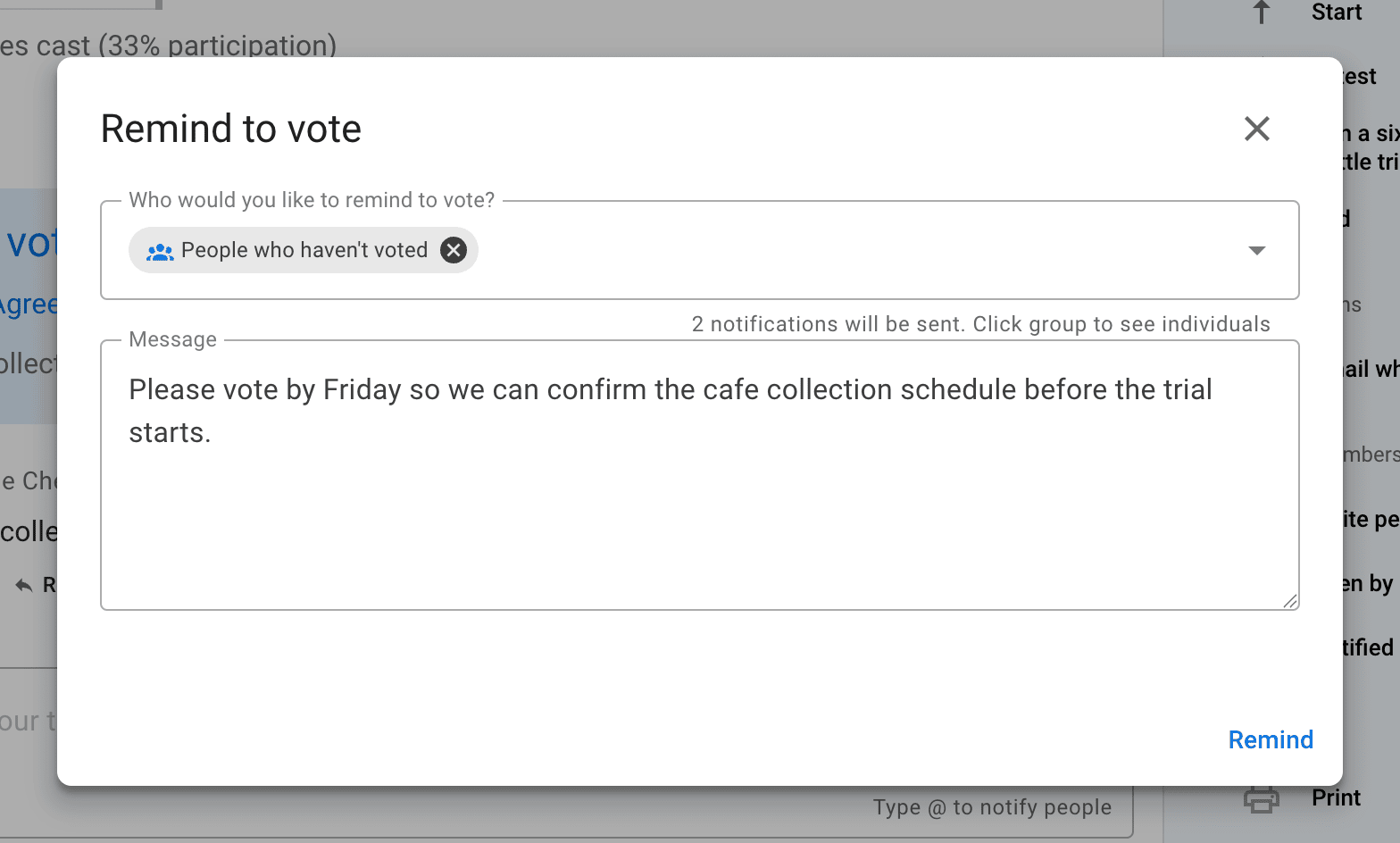
Select Remind on the poll, choose who should receive the reminder, add a message, and select Remind to send it. You can select People who haven't voted to reach the people whose responses are still needed.
View notification history
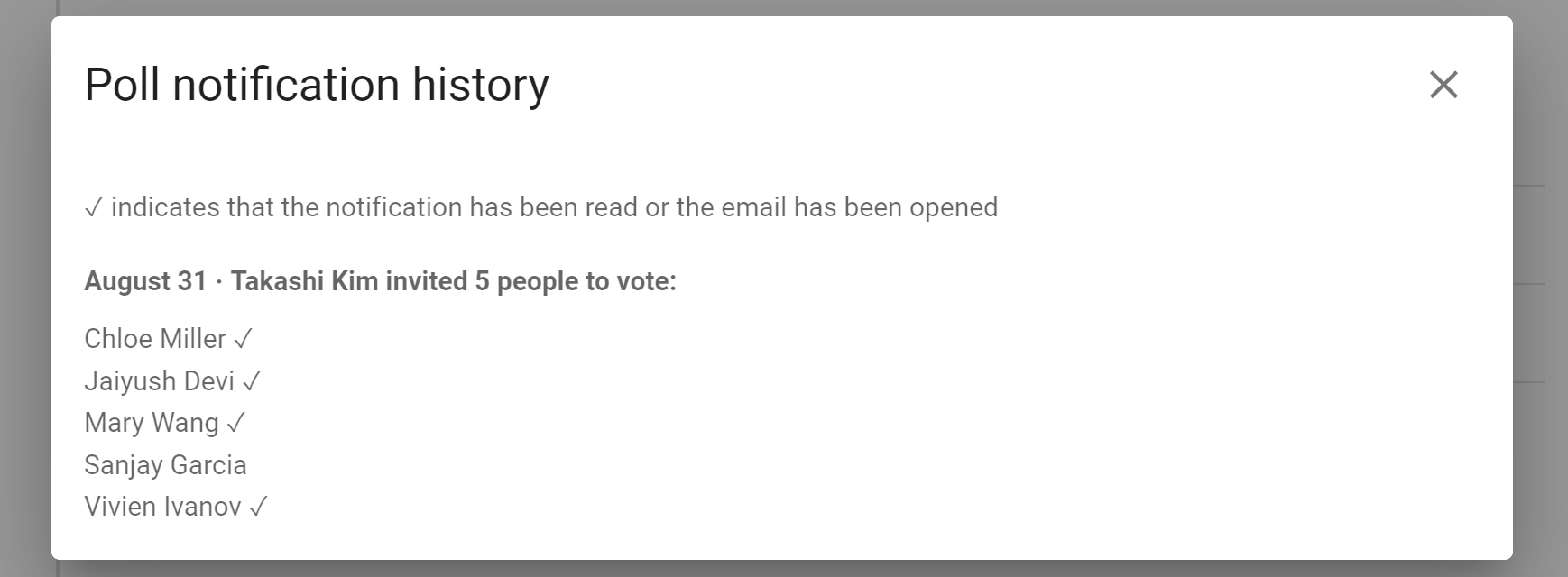
Open the poll's three-dot menu (⋯) and select Notification history to see who has been invited, when each invitation was sent, and whether it has been read when that information is available.
Close early
Select Close early when everyone has voted or the poll no longer needs to stay open.
Reopen
Select Reopen on a closed poll and set a new closing date and time. Polls that hide results until voting closes, including anonymous polls, cannot be reopened; you can extend their closing time while they are still open.